How do I see current Theme tokens applied to the SharePoint site?

Problem

Sometimes you may want to know what types of Theme tokens applied to the current site.

Let’s say you have the following site with the

Step By Step Solution

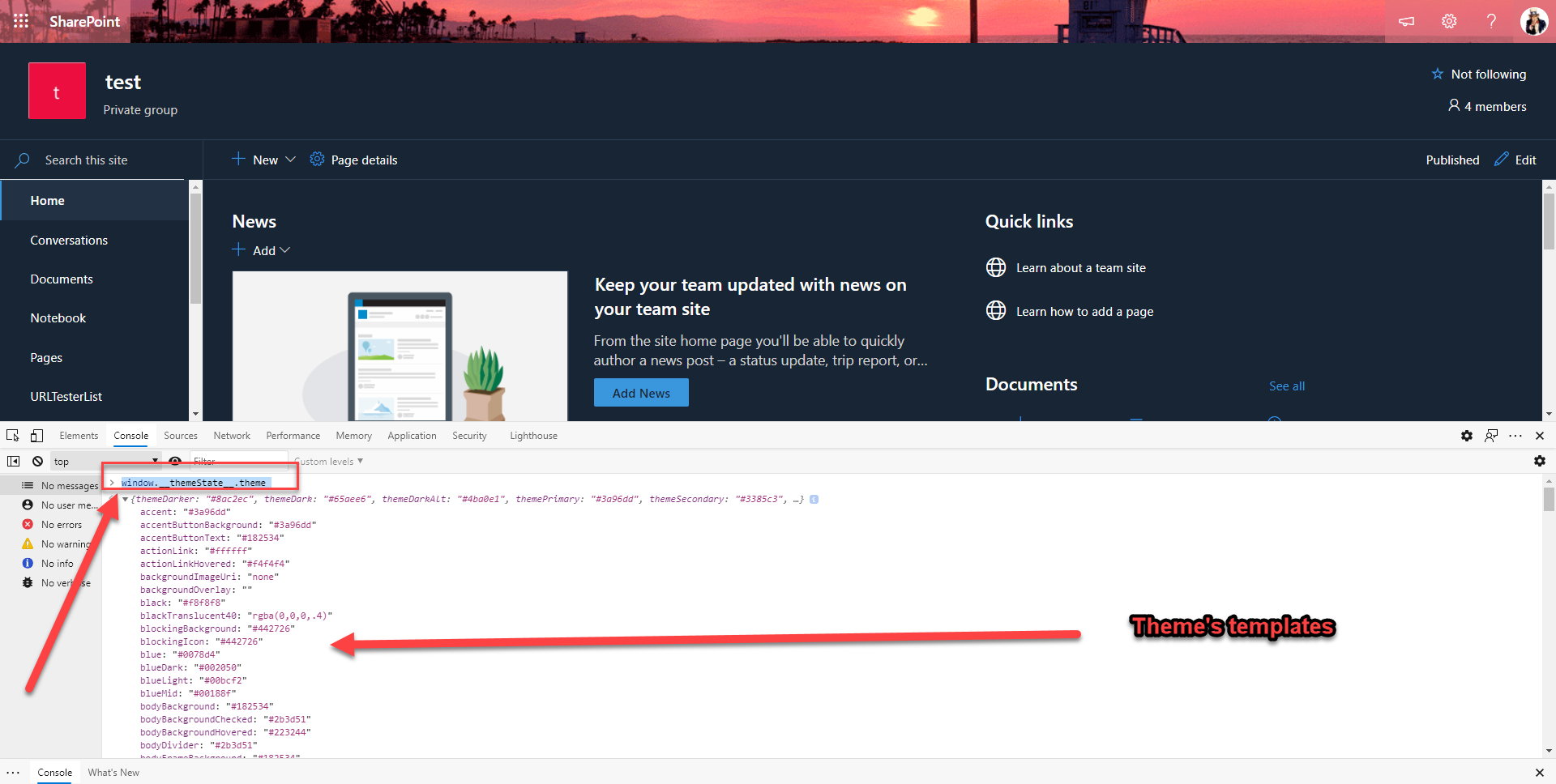
It is a simple step, just F12 or Go to Developer Tools on your browser an type.

window.__themeState__.theme

You will see all the applied theme’s templates.

Result

Using the console debug window.__themestate__.theme you were able to see all applied themes to the site.

Posted in SharePoint | Leave a comment

How to eliminate defining large set of variables in Power Automate?

Problem

Here is the scenario, let’s say that in the workflow you may need large set of variables to hold the data as a variable, and set variable with new values etc. Your first approach is to create a multiple ‘Initialize variable’ actions and wherever you make the change to the variable you will use ‘Set variable’ action.

The ‘Initialize variable’ ad ‘Set variable’ actions.

Well the problem is you will end up with lot of variables actions and it may get laborious to rename Initialize and Set actions. There is a better ways to do the same using JSON object.

Step by Step Solution

The first steps is you need to define an object with all the variables you need, e.g. the following object with variables like FirstName, LasteName, Age etc.

An object variable ‘WorkflowVarObject’ with all required variables as properties.
--- In this JSON object each variables is with the data type
--- FirstName, LastName etc. are 'String' type
--- Age is a integer type
--- Salary is float type
--- Address is an object
--- Jobs is an array

{
"FirstName": "",
"LastName": "",
"Address": {
"City":"",
"State":"",
"Zip":""
},
"Age": 0,
"Salary": 0.0,
"Jobs":[ "Job1", "Job2" ]
}

Now second step is you want to change the ‘WorkflowVarObject’ variable’s property such as FirstName, LastName etc. You can add the Set variable action with the SetProperty function.

Use SetProperty function to change the ‘FirstName’ property of the ‘WorkflowVarObject’
setProperty(variables('WorkflowVarObject'),'FirstName', 'Pankaj')

But there is a problem with above action, when you run the flow to test you will get the following error.

An error “Self reference is not supported when updating the value of variable ‘WorkflowVarObject’.”

So to workaround this first put the above expression in a compose and then set output value of the compose to set variable.

Add Compose action before setting the master JSON object variable ‘WorkflowVarObject’.

Result

The solution allowed to eliminate the multiple initialize variable actions. It allowed us to overcome an issue of the updating of the self reference.

There is a UserVoice for self reference issue if that is resolved you can eliminate the extra compose action.

Posted in Power Automate | 1 Comment

Ask The Experts Ignite 2020

Session CodeTitle
ATE400Build, deploy, and manage a security-focused hybrid environment with Red Hat and Microsoft
ATE401Why backup matters in a hybrid-cloud world!
ATE402Making Microsoft Teams Room even smarter Explore how system-integration and IoT can turn your MTR into a truly intelligent space
ATE403Custom fitting Microsoft Business Apps for your industry
ATE404Intelligent Manufacturing with Intel and Microsoft Technology Experts
ATE405Troubleshoot your organization’s Microsoft 365 document and creative workflows with Adobe
ATE406VMware and Microsoft: Coming Together to Drive Azure. O365, and More
ATE407Hybrid Cloud with Azure
ATE409Cloud in 2020: Predictions vs Reality
ATE410Pragmatic Azure Security – Lessons Learned from the Largest Azure Security Projects
ATE411Make resilience a reality in Azure: Easily Migrate Your Complex File Workloads
ATE412Everything you ever wanted to know about PowerShell
ATE413Why You Can’t Live Without Comprehensive Cloud Native Security
ATE414Ask the Experts: Succeeding with Microsoft Teams in mixed technology communications environments
ATE-DB101Learn how Lockheed Martin is advancing spaceflight with the HoloLens and mixed reality
ATE-DB101-R1Learn how Lockheed Martin is advancing spaceflight with the HoloLens and mixed reality
ATE-DB103Building AI-powered applications with Azure Cognitive Search
ATE-DB104Building a Hybrid data platform with Azure Arc enabled data services
ATE-DB105.NET App Modernization and Migration from End to end, using data migration tools and Azure SQL
ATE-DB105-R1Repeat
ATE-DB106What’s new in Azure Cognitive Services
ATE-DB106-R1Repeat
ATE-DB107Ask us anything on Windows Virtual Desktop
ATE-DB107-R1
ATE-DB108Linux and PowerShell on Azure
ATE-DB108-R1Repeat
ATE-DB109Migrate, Modernize .NET applications on Azure
ATE-DB109-R1
ATE-DB110Enterprise-grade Kubernetes on Azure
ATE-DB110-R1Repeat
ATE-DB111Building real-time enterprise analytics solutions with Azure Synapse Analytics
ATE-DB112-R1How to manage your cloud costs in Azure Cost Management + Billing
ATE-DB113Running real-time data analytics on the edge with Azure SQL Edge
ATE-DB114Ask us anything on Azure Arc
ATE-DB114-R1Repeat
ATE-DB115Be prepared for what’s next: kick start your cloud journey with Azure Migration Program
ATE-DB115-R1Repeat
ATE-DB116Azure IoT: From connected assets to connected environments with Digital Twins
ATE-DB116-R1Repeat
ATE-DB117disk storage, core compute and networking
ATE-DB117-R1Repeat
ATE-DB118E2E machine learning for enterprises in a secure way
ATE-DB119New innovations on Azure Database for MySQL and Azure Database for PostgreSQL to turbo charge application development
ATE-DB119-R1Repeat
ATE-DB120Fast-Track development of production-ready ML models with Azure Machine Learning
ATE-DB121Innovate with Azure Communication Services
ATE-DB121-R1Repeat
ATE-DB122Transform your Windows Server workloads in Azure
ATE-DB122-R1Repeat
ATE-DB123.NET Team
ATE-DB124Protect revenue and drive performance with D365 Finance & Fraud protection
ATE-DB125Automate your desktop with Power Automate
ATE-DB126Microsoft Cloud for Healthcare: Empowering health organizations to deliver better experiences, better insights, and better care
ATE-DB127Future of Customer Care: What’s new and what’s next for Dynamics 365 Customer and Field Service
ATE-DB128Leverage Microsoft Project and the Project Accelerator to take your projects to the next level
ATE-DB129Power Platform Center of Excellence
ATE-DB129-R1Repeat
ATE-DB129-R2Repeat
ATE-DB130Build Agile Business Processes with Power Apps
ATE-DB130-R1Repeat
ATE-DB131Building systems of insights for enterprise scale with Power BI and Azure
ATE-DB131-R1Repeat
ATE-DB132Amplify your pro developer skills with Power Platform
ATE-DB133How to activate Digital Selling: from raw data to insights
ATE-DB133-R1Repeat
ATE-DB134Deliver insights where decisions are made with Power BI
ATE-DB134-R1Repeat
ATE-DB135Microsoft Dynamics 365 Supply Chain Management for Distribution and Manufacturing
ATE-DB136Embrace a New Way of Work with Microsoft 365
ATE-DB136-R1Repeat
ATE-DB137Driving Innovation for Modern Work with Surface Hub and Duo
ATE-DB138Scale and Customize Virtual Meetings and Events with Microsoft Teams
ATE-DB138-R1Repeat
ATE-DB139Windows 10 innovations for enhanced productivity and resiliency
ATE-DB139-R1Repeat
ATE-DB140What’s new in Microsoft Teams security and compliance
ATE-DB140-R1Repeat
ATE-DB141Simplify work with low-code solutions for Microsoft Teams & Microsoft 365
ATE-DB141-R1Repeat
ATE-DB142Nathalie Irvine, GM Microsoft 365 on the foundation of secure remote work for SMBs
ATE-DB142-R1Repeat
ATE-DB144One place for admins to manage Microsoft Teams:  What’s new in Teams manageability
ATE-DB144-R1Repeat
ATE-DB145Playing chess on a trampoline: How to innovate in an era of uncertainty
ATE-DB145-R1Repeat
ATE-DB145-R2Repeat
ATE-DB146Reimagining work with the Microsoft 365 Platform
ATE-DB146-R1Repeat
ATE-DB147Power modern meeting experiences across the hybrid workplace using Microsoft Teams devices
ATE-DB147-R1Repeat
ATE-DB148Bring harmony to work and life with productivity and wellbeing insights in Microsoft Teams
ATE-DB148-R1Repeat
ATE-DB148-R2Repeat
ATE-DB149Microsoft Teams Calling Made Simple
ATE-DB149-R1Repeat
ATE-DB150Employee Engagement and Communities in Microsoft 365
ATE-DB150-R1Repeat
ATE-DB150-R2Repeat
ATE-DB151-R1Meet smarter, stay focused, and achieve more with Microsoft Teams meetings
ATE-DB152Digitally Transform an Essential Part of your Organization, the Firstline Workforce
ATE-DB152-R1Repeat
ATE-DB153The Outlook vision: IT and user value in a hybrid workspace
ATE-DB154Project Cortex: Knowledge discovery and content intelligence in Microsoft 365
ATE-DB154-R1Repeat
ATE-DB155Introducing modern admin capabilities to better service Microsoft 365 Apps for enterprise
ATE-DB155-R1Repeat
ATE-DB155-R2Repeat
ATE-DB156Creating a resilient, inclusive, and hybrid workplace with Microsoft Teams
ATE-DB156-R1Repeat
ATE-DB157Transforming the modern workplace with Microsoft Teams platform
ATE-DB157-R2Repeat
ATE-DB159Be a risk management hero with intelligent data protection and compliance solutions
ATE-DB159-R1Repeat
ATE-DB160Safeguard your multi-cloud apps and resources with the latest Cloud Security innovations
ATE-DB160-R1Repeat
ATE-DB161Improve SecOps with Azure Sentinel, your Cloud-Native SIEM
ATE-DB161-R1Repeat
ATE-DB162Don’t lose sleep over insider risks! Use the power of ML to Identify and reduce your risk today
ATE-DB162-R1Repeat
ATE-DB163Supercharge information protection and governance across cloud, on-premise, endpoints and remote work environments
ATE-DB163-R1Repeat
ATE-DB164Microsoft 365 Defender: Stop attacks and reduce security operations workload by 50% with automated cross-domain security
ATE-DB164-R1Repeat
ATE-DB165Save money by securing access to all your apps with Azure Active Directory
ATE-DB165-R1Repeat
ATE-DB166Modernizing your Security Operations
ATE-DB166-R1Repeat
ATE-DB167Winning Azure Active Directory strategies for identity security and governance
ATE-DB167-R1Repeat
ATE-DB168Azure Active Directory: our vision and roadmap to help you secure remote access and boost employee productivity
ATE-DB168-R1Repeat
ATE-DB169Zero Trust the road ahead
ATE-DB169-R1Repeat
ATE-DB170Ask anything about Microsoft Compliance: information protection & governance, insider risks, Compliance Management, and more!
ATE-DB170-R1Repeat
ATE-DB172Simplify software procurement and management with Azure Marketplace
ATE-DB181Microsoft Global Social Entrepreneurship Program and ClearSpace
ATE-DB182Transparency to Global Food Supply Chains
ATE-OD225Visual Studio, GitHub, and Azure
ATE-OD236What’s new in Microsoft Dynamics 365 Project Operations
ATE-OD242Discover what’s new in Microsoft Dynamics 365 Supply Chain Management
ATE-OD243Discover what’s new in Microsoft Dynamics 365 Commerce
ATE-OD245Gain insights into usage and performance of your Power BI reports to increase adoption and reduce costs
ATE-OD252Microsoft Edge State of the browser in 2020
ATE-OD300Bringing Next-Generation AI Innovation to the Enterprise
Posted in Ignite2020 | Leave a comment

How to get list of users emails from the SP Group in Power Automate?

Problem

I worked on this on my workflow I want to share, I had few list of SP Groups by the department. e.g. ITApprovers, LegalApprovers, HRApprovers etc. Each SP Group had users in it. For the “Send Approval” action the need was to send approval to these users. I needed semicolon delimited string like following

DebraB@GOV019539.OnMicrosoft.com;JohannaL@GOV019539.OnMicrosoft.com;admin@GOV019539.OnMicrosoft.com

The SP Group ‘HRApprovers’ with three approvers.

Step by Step solution

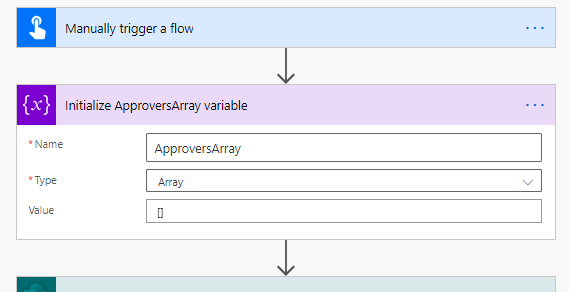
Step # 1 Define a blank AppoversArray variable.

Initialize the ApproversArray as blank array.

Step # 2 Get all Users email by the SP Group Name

Use the ‘Send and HTTP request to SharePoint’ to get list of user by SP Group. e.g. ‘HRApprovers’
_api/web/SiteGroups/getByName('HRApprovers')/users?$select=Email

Note: In the Uri part you may need to pass the approvers SP Group name using variable. For the simplicity I have hard coded.

The output of the able call will in the following format. We need to get to the “results” from the body to iterate over to get to the ‘Email’.

{
  "d": {
    "results": [
      {
        "__metadata": {
          "id": "https://gov019539.sharepoint.com/sites/test/_api/Web/GetUserById(9)",
          "uri": "https://gov019539.sharepoint.com/sites/test/_api/Web/GetUserById(9)",
          "type": "SP.User"
        },
        "Email": "DebraB@GOV019539.OnMicrosoft.com"
      },
      {
        "__metadata": {
          "id": "https://gov019539.sharepoint.com/sites/test/_api/Web/GetUserById(14)",
          "uri": "https://gov019539.sharepoint.com/sites/test/_api/Web/GetUserById(14)",
          "type": "SP.User"
        },
        "Email": "JohannaL@GOV019539.OnMicrosoft.com"
      },
      {
        "__metadata": {
          "id": "https://gov019539.sharepoint.com/sites/test/_api/Web/GetUserById(12)",
          "uri": "https://gov019539.sharepoint.com/sites/test/_api/Web/GetUserById(12)",
          "type": "SP.User"
        },
        "Email": "admin@GOV019539.OnMicrosoft.com"
      }
    ]
  }
}

Step # 3 Iterate over the results using the Apply Each and append email to the ApproversArray variable.

Iterate over the results array to get the Email. Append the Email to the ApproversArray.

The array of the results is like the following.

outputs('Send_an_HTTP_request_to_SharePoint')?['body']?['d']?['results']

For each item access Email and append to the array

item()?['Email']

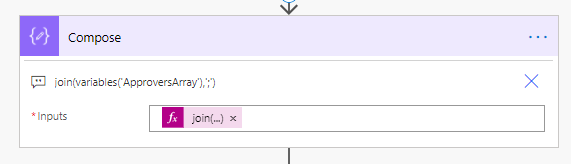
Step 4 Join the Aprovers Array with semicolon delimited

Join the ApproversArray with semicolon delimited
join(variables('ApproversArray'),';')

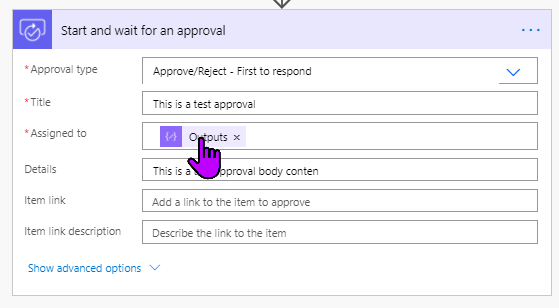
Step 5 Using the above compose from step 4 to send an approval.

The Outputs is the output of the compose variable.
Posted in Power Automate | 1 Comment

How to create Power Automate flow which can be manually triggered?

Problem

It is simple to create a flow for ‘when item created or modified’ triggers. But the customer raise following questions.

How to create a Power Automate flow which can be manually triggered?

How can end user pass inputs to a manually triggered flow?

Step by Step solution

In fact answer is quite simple, there are triggers called ‘For a selected file‘ and ‘For a selected item

The above two trigger can be used to make a manually trigger flow.

Let’s say we want to trigger ‘For a selected item’, once you select the correct site url and list you will see the following option.

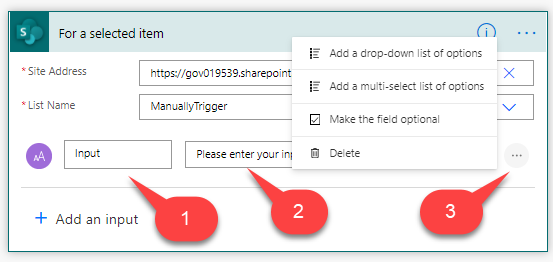
Once you select the trigger, these are the options given for adding to gather more inputs from the end user.

For ‘Text’ type user input.

For ‘Text’ user input.
  1. Provide the name of the input like Department
  2. Provide the text so end user can see what the input is about.
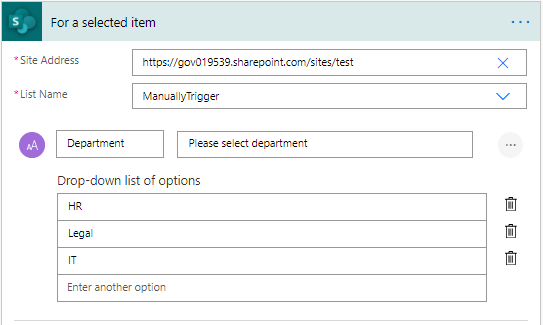
  3. Click on the ‘…’ to get various options for Text input. You can choose list of options if you want to limit the end user with defined choice, e.g. “HR”, “IT”, “Legal” etc.

Note: you can also leave it a Text where user will be asked to type the value.

Text Input as the list of options.

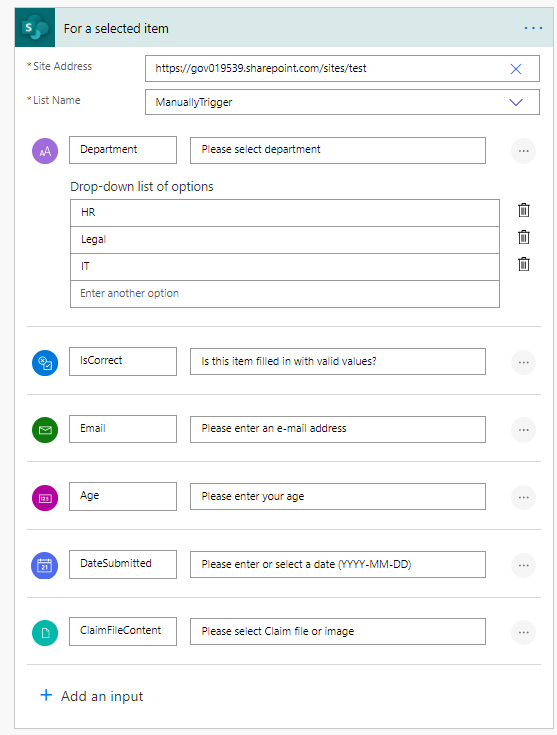
For All user input type it is quite simple as seen below

Result

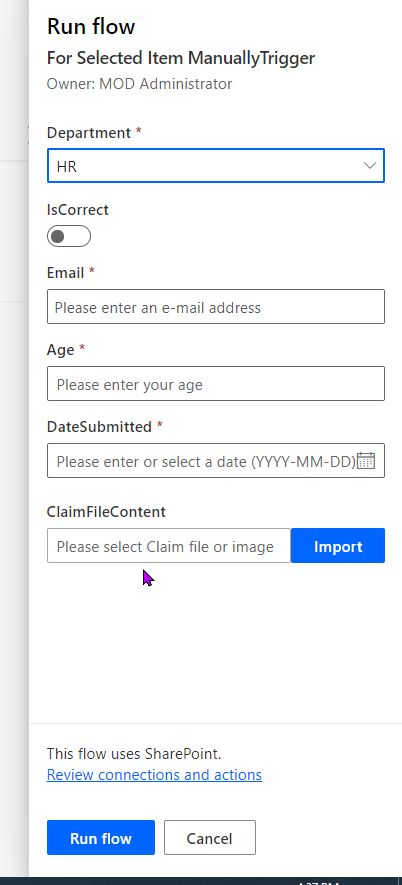
Once you have entered all required input type the end user can go the list or library and select a flow as following.

The manually triggered workflow can be invoked as shown above.

The end user will have now an option to provide all the inputs defined in the flow.
Posted in Power Automate, Uncategorized | Leave a comment

How to update People field using ‘Send an HTTP request to SharePoint’ in Power Automate?

Problem

It is not a problem. The question is how to update a people field (single or multiple) in Power Automate using “Send an HTTP request to SharePoint” REST api?

To simplify the solution here are three fields in the SharePoint list. Let’s use a default template ‘When an item created’ trigger to update the first field OneApprover and MoreThanOneApprovers fields.

We have three test users

DebraB@GOV019539.OnMicrosoft.com
JohannaL@GOV019539.OnMicrosoft.com
BobK@GOV019539.OnMicrosoft.com
The above three test users will be added to the approvers.
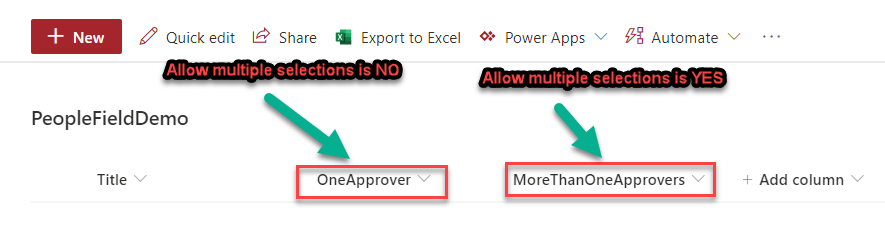
In the above list the ‘OneApprover’ field is a people field and its ‘Allow multiple selection’ setting is NO.
For the ‘MoreThanOneApprovers’ people field the ‘Allow multiple selection’ is YES

Step by Step solution

There is two step process, first to get IDs of the users by email ID and second to send the POST request to update the people field.

Step # 1

First get the ID of the user by email and Compose the value to use in the later step.

Use the following in the “Uri” field, note the email address and select of an ID.

NOTE: Please use Scope so that you can combine all the repetitive actions in one to get IDs.

_api/web/SiteUsers/getByEmail('DebraB@GOV019539.OnMicrosoft.com')?$select=Id
Note: Output of the above action will be following. We need to access the 'Id' value.

{
  "d": {
    "__metadata": {
      "id": "https://gov019539.sharepoint.com/sites/test/_api/Web/GetUserById(9)",
      "uri": "https://gov019539.sharepoint.com/sites/test/_api/Web/GetUserById(9)",
      "type": "SP.User"
    },
    "Id": 9
  }
}
Note: to access the Id value we will use the following formula in the Compose

body('Send_an_HTTP_request_to_SharePoint_to_get_Id_for_Debra')?['d']?['Id']

Step # 2

Now that we have an IDs of all there users we can call the POST method to update the two fields in the list.

Note: In the Uri field you will provide the following. This will invoke the call for the current list item,

_api/web/lists/GetByTitle('PeopleFieldDemo')/items('@{triggerBody()?['ID']}')

Note: In the headers section you will provide the following json.
TIP: click on the “T” circled as res to get in the text mode to copy and paste.


{
"content-type": "application/json;odata=verbose",
"IF-MATCH": "*",
"X-HTTP-Method": "MERGE"
}

Now very important step i.e. to update people field.

Notes:

1: Update the list name from ‘PeopleFieldDemo’ to your list name.
2: The Compose outputs are IDs of the users. They are typically an integer values. You need to put your values.
3: Please make a note the single field is just assign one value with multiple it is an array
4: Notice the field name “OnePrrover” and “MoreThanIneApprover” there is a “Id” suffix.

{
"__metadata": {
"type":"SP.Data.PeopleFieldDemoListItem"
},

"OneApproverId": @{outputs('ComposeIdForDebra')},

"MoreThanOneApproversId": {
"results": [
@{outputs('ComposeIdForJohanna')},
@{outputs('ComposeIdForBob')}
]
}
}

Result

The output of the list item will look like this in my case the IDs I have assigned.

The output of the flow ran.
SHAREPOINT REST WALL PAPERhttps://www.microsoft.com/en-us/download/details.aspx?id=41147
Use the above link to download the SharePoint Wall paper to explore more REST calls.

Posted in Power Automate, Uncategorized | 1 Comment

How to update Hyperlink field using ‘Send an HTTP request to SharePoint’ in Power Automate?

Problem

It is not a problem. The question is how to update a hyperlink field in Power Automate using “Send an HTTP request to SharePoint” REST api?

To simplify the solution here are two fields in the SharePoint list. Let’s use a default template ‘When an item created’ trigger to update the second field “CompanyUrl” with a value of the clickable URL.

The sample list “URLTesterList” with two fields, one default field Title and other CompanyUrl.
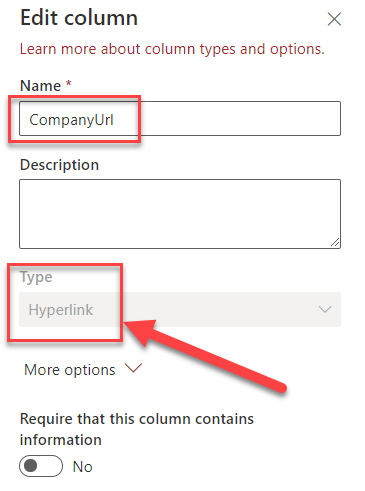
The CompanyUrl field is a Hyperlink field.

Step by Step solution

Step # 1

Use a trigger to start your work flow in this example ‘when an item is created’ with a Title field with some value e.g. Microsoft or Google.

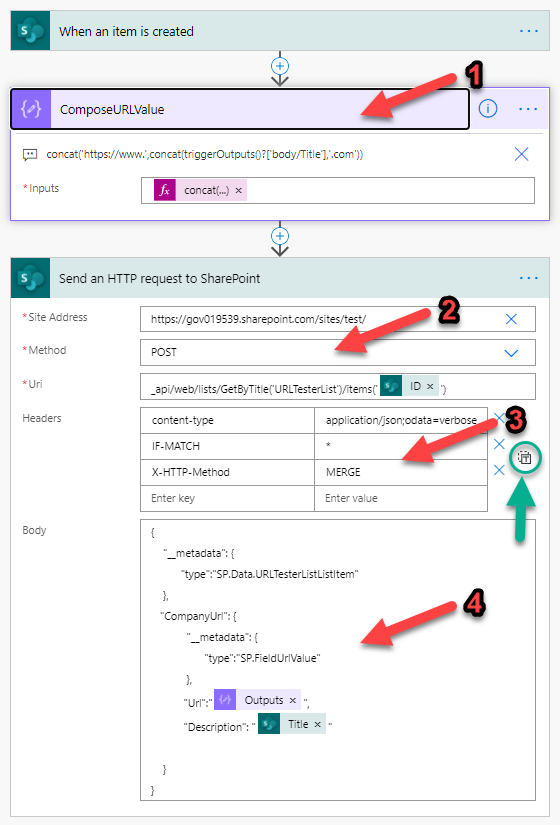
Here is the formula in the Compose action for constructing an URL for CompanyUrl field.

Take a title value append ‘.com‘ and prepend ‘https://www.‘ This will create a full url as ‘https://www.{WHATEVER TITLE HAS}’.com

concat(
'https://www.',
concat(
triggerOutputs()?['body/Title'],
'.com'
)
)

Step # 2

Provide the values for Site address, Method as ‘POST’ and Uri as following.

Note: the items has dynamic ID field.

_api/web/lists/GetByTitle('URLTesterList')/items('@{triggerOutputs()?['body/ID']}')

Step # 3

Provide the headers portion, you may copy paste from the following by clicking “T” symbol (green circle) on the far right of the headers. Simply copy these value to the headers section

{
"content-type": "application/json;odata=verbose",
"IF-MATCH": "*",
"X-HTTP-Method": "MERGE"
}

Step # 4

Now this is an important step. If you notice in the following JSON string there is a “__metatdata” filed with type for your list the list name will be different. Please make a change in the type as highlighted in bold with your list name.

The required JSON value for the body section

{
"__metadata": {
"type":"SP.Data.URLTesterListListItem"
},

"CompanyUrl": {
"__metadata": {
"type":"SP.FieldUrlValue"
},
"Url":"@{outputs('ComposeURLValue')}",
"Description": "@{outputs('ComposeURLValue')}"
}
}

Result

Once the flow executes your should see the field CompanyUrl updated as following.

The list updates the CompanyUrl as an item is created with Title field with company name.
SHAREPOINT REST WALL PAPERhttps://www.microsoft.com/en-us/download/details.aspx?id=41147
Use the above link to download the SharePoinbt Wall paper to explore more REST calls.

Posted in Power Automate, Uncategorized | 2 Comments

How do I insert picture to outlook body message in Power Automate?

Problem

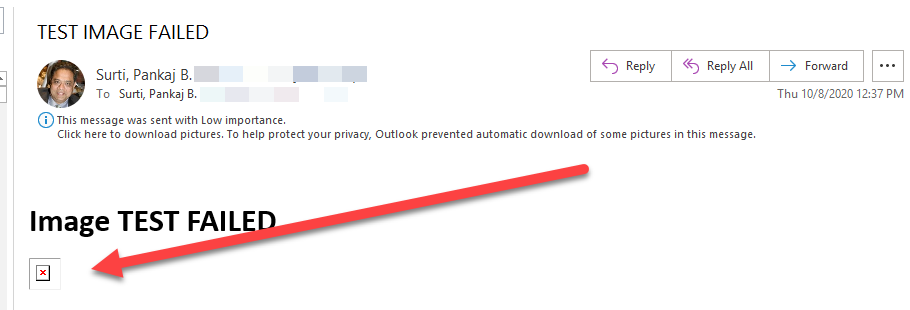
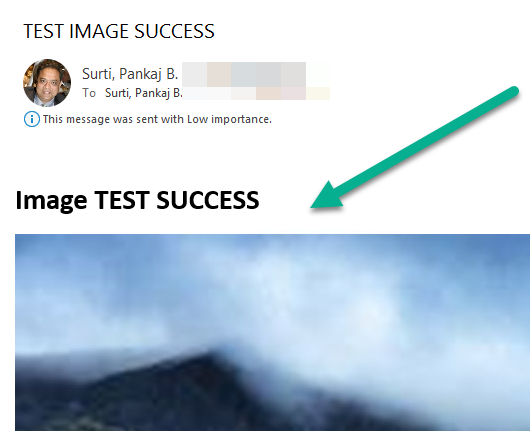
A customer complained that they used the following action to send an email with the image, but the email recipient cannot see an email in the outlook client.

Customer’s original way to send an email with picture to send an URL to SPO site.
The Outook client showed the image like shown above

Step by Step Solution

In summary you cannot send an SRC attribute to an url for the outlook client. To protect the users the outlook client will block the image url. You need to pass an image as base64 encoded SRC like the following.

Sample base64 img tag for the send email

<img 
src="data:image/png;base64, *****"
alt="an image desc">
</img>

WHERE:
***** is the base64 long string.

Step #1:

Get a file from any library where your image resides. e.g. in SiteAssests library. The output of this action will be In the following format.

The output of the Get File content.


{
    "$content-type": "image/jpeg",
    "$content": ".9jsd…. LONG CHARACTERS IN BASE64"
}

Step #2:

Create a Compose action to get the SRC value for IMG tag with base64. The expression is a string concatenations.

Using concat function create the SRC attribute value.

concat (
    'data:image/png;base64, ',
    outputs('Get_file_content_suing_path')?['body']?['$content'])
)

Step # 3:

Use the above compose to send an email action.

IMG tag uses the SRC from the compose output.

<img
src="outputs('Compose_to_make_SRC_of_image_a_base64')"
alt="hey look I can work like this">
</img>

Result image was rendered in outlook client

Posted in Power Automate, Uncategorized | Leave a comment

Ignite 2020 Learning Zone

CodeTitle
LRN100Intro to Azure
LRN103Intro to Azure AI
LRN106Intro to Azure Data
LRN114Intro to Power Platform
LRN119IT Operations in a Cloud World
LRN123Intro to Security, Compliance and Identity
LRN124Intro to Microsoft Teams for IT
LRN137Visual Studio Code – Your editor everywhere
LRN142Python: A great first programming language
LRN145Hello, World! in 3 languages
LRN151Create great apps without the CS degree using Power Apps!
LRN154Get started on your HealthTech Journey
LRN157Dynamic websites with Azure Static Web Apps
LRN160The Interns DevOps in IT for Themselves A Beginners Story
LRN163Intro to GitHub
LRN166Getting started with Machine Learning using Python
LRN169The Data Behind Space Exploration with NASA
LRN200Shape data in a Power Apps canvas app
LRN202Migrating to Azure
LRN203Deploy Microsoft Teams Meetings
LRN204Analyze cost and create budgets with Azure Cost Management + Billing
LRN207How to manage insider risk with Microsoft Compliance
LRN208Exploring core concepts in Azure Data
LRN209Create a unified customer profile in Dynamics 365 Customer Insights
LRN212Migrating to Azure
LRN216Work with external data in a Power Apps canvas app
LRN218Exploring core concepts in Azure Data
LRN221Microsoft 365 Defender: Stop attacks with automated cross-domain (XDR) security
LRN222Migrating to Azure
LRN225Manage apps, bots, and connectors in Microsoft Teams
Posted in Ignite2020 | Leave a comment

Ignite 2020 Key Segment Sessions

CodeTitle
KEY01Building Digital Resilience
KEY02Invent with Purpose on Azure with Julia White and Friends
KEY03Microsoft Power Platform: Fill the App Gap and Supercharge Organizational Agility
KEY04The Future of Work
KEY05Microsoft Dynamics 365: Reimagine How You Can Meet The Needs of Tomorrow
KEY06Achieve resilience with Security, Compliance, and Identity
KEY07Are we there yet? App Development in Azure with Scott Hanselman and Friends
KEY08Envisioning the Future: How Microsoft Approaches Innovation
KEY09Panos and Brad Unplugged A Conversation About New Hybrid Workstyles with Windows and Microsoft 365
KEY10Microsoft Azure Unplugged with Jason and Billy
Posted in Ignite2020 | Leave a comment