How to call Epic on FHIR using Postman?

Summary

I was tasked to get Sandbox Epic test data using FHIR APIs. This article will briefly demonstrate how to setup the App on Epic?, How provide required permissions for the App? and How to call the API using the Postman.

Prerequisites:

You will need register and log in on the Epic on FHIR.

To sign up you will need a company email and web sites.

You will need to create the App and Secret.

Step by Step Solution

You can follow the steps from here to create a new App.

The documentation has some missing information on the creation of the app secret. The following information worked for me to create the app secrect.
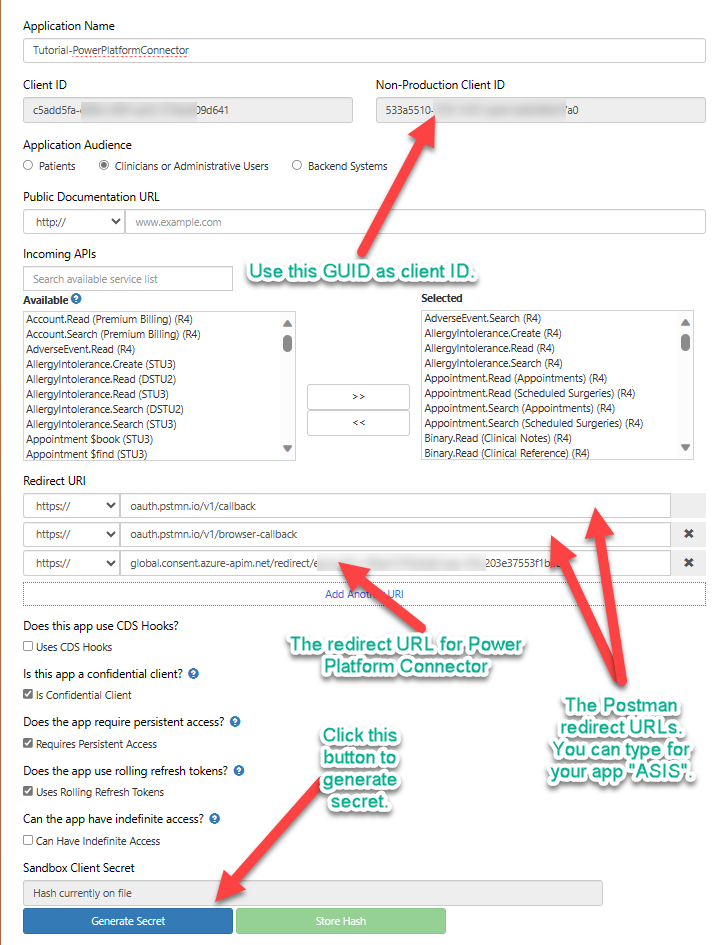
Using following repository you can import the Environments and Postman collections.

https://github.com/pankajsurti/EPIC-FHIR/

After importing the environments, set the environments variables as following.
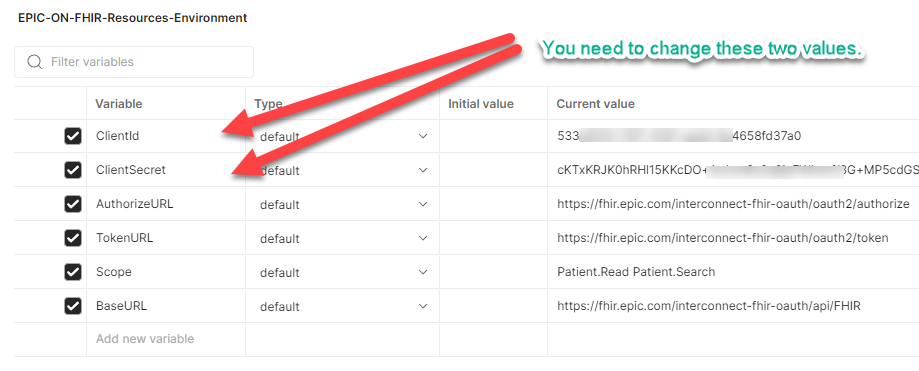
VariableCurrent value
AuthorizeURLhttps://fhir.epic.com/interconnect-fhir-oauth/oauth2/authorize
TokenURLhttps://fhir.epic.com/interconnect-fhir-oauth/oauth2/token
ScopePatient.Read Patient.Search
BaseURLhttps://fhir.epic.com/interconnect-fhir-oauth/api/FHIR

Getting the Token.

Open the Postman collection. Go to the Top Folder “Epic_Sandbox (R4). Click on Authorization tab. At the bottom click on the “Get New Token”. You will be redirected to the Login in page.

Note: Please use the user id and password from Sandbox test data page. Please note based on what you have selected in your app you can use patient’s login or the provider’s login.

Once you have the token you can make a call to the Read or Search for the Patient entity. You can experiment with various other FHIR (R4) resources. But keep in mind you will need to the Scope variable in the environments settings.

Conclusion

This blog post will help you how to get the Epic Sandbox data using the Postman. There are more steps to the get the production data. You will need to talk to Epic support and your customer to get the correct production FHIR Url. It is beyond the scope of this post.

Here are list of the FHIR endpoints for various Epic installation.

The next you can do it to create the Power Platform Connector using this Postman collection. You will need to setup the security and set redirect url in the Epic app.

I hope this helps you.

Posted in FHIR, Power Apps, Power Apps, Power Automate, Technical Stuff | Tagged , , , , | 1 Comment

How to create a JSON string array in PowerApps?

Summary

In Power Apps, creating a JSON object is easy. It can be initialized like this.

// Created an object with the types as array of strings
Set (
    anObject,
    {
        service: "Food",
        types: [
            "Bread",
            "Pasta",
            "Soup"
        ]
    }
);

We can use the JSON function to convert the above object to a string. It will give you the JSON string representation to pass to the API as a payload. (Note: I am simplifying the API you may have. It may be complex, but this example will give you an idea.)

Set (
    aJSONStr,
    JSON(anObject)
);

The output of the above call will be the following. Note that the “Value” is added to the string array ‘types’. It will not be a valid payload.

“{\”service\”:\”Food\”,\”types\”:[{\”Value\”:\”Bread\”},{\”Value\”:\”Pasta\”},{\”Value\”:\”Soup\”}]}”

The valid output of the payload string should be:

“{\”service\”:\”Food\”,\”types\”:[\”Bread\”,”Pasta\”,”Soup\”]}”

So, how can we achieve that?

Solution:

So, in Power Apps, that is the expected behavior for the array of strings to add the “Value” property.

The following solution is to replace the highlighted and stricken characters with a blank for every occurrence of the match found.

“{\”service\”:\”Food\”,\”types\”:[ {\”Value\”: \”Bread\” } , {\”Value\”: \”Pasta\” } ,{\”Value\”: \”Soup\” } ]}”

Utilized the Look Ahead Regular Expression technique.


Set (
    aValidJSONStr,
    With (
        {
            InnerWorkStr: JSON(
                anObject,
                JSONFormat.Compact
            )
        },
        With (
            {
                matches: MatchAll(
                    InnerWorkStr,
                    "\{""Value"":(?=.*\})"
                )
            },
            Collect(
                labelTextColl,
                InnerWorkStr
            );
            ForAll(
                matches,
                Collect(
                    labelTextColl,
                    // Find and replace end curly bracket of {\"Value\":\"Bread\"}
                    Replace(
                        // substitute 9 spaces for the string match {\"Value\":
                        Substitute(
                            Last(labelTextColl).Value,
                            ThisRecord.FullMatch,
                            "         "
                        ),
                        Find(
                            "}",
                            Last(labelTextColl).Value,
                            ThisRecord.StartMatch
                        ),
                        1,
                        " "
                    )
                );
            );
            Last(labelTextColl).Value;
            // Very Important as the results returned
        )// End of inner With
    )// End of outer With
);

After executing the above search and replace logic using the logical expression, you will get the valid JSON string with the correct string array as expected for the API payload.

Conclusion

I hope you find this useful for your project as I had to figure this out for my project, and I spent some time understanding the problem and coming up with the solution.

Please also refer to my previous posts related to this post.

How to create a JSON String array in PowerApps?

How to find and replace an array of strings from a large string variable using PowerFx?

Posted in Power Apps, Power Apps | Leave a comment

How to solve PowerFx JSON double escape quotes problem?

Summary

I encountered an interesting problem while working on an app with a JSON function. To remove the clutter of the complexities of the app, I will explain the need and problem in a simple scenario. Later I added the solution I used to resolve the issue.

Two needs of the app were:

#1: To get table information from the app as a JSON string.

// Real application the JSON will looked diffrent and large FHIR bundle objects.
// For the simplicity, the table may look like the following as JSON.
Set(
    SampleTableJSONStr,
    JSON(
        [
            {
                name: "Homer Simpson",
                age: 61,
                secretIdentity: "CoolDad"
            },
            {
                name: "Marj Simpson",
                age: 60,
                secretIdentity: "SuperMom"
            }
        ]
    )
);

#2: Pass the above to an API in JSON format with the request as shown below.

// The above string SampleTableJSONStr must be passed as the JSON with escape quotes
{
    sourceType: "inline",
    value:       SampleTableJSONStr
}

Problem

I used the following method to pass the request to API. But the API failed with an error. The error was the “value” passed in was not a well-formatted JSON object.


// *** First time, JSON was used for search-replace some hard-coded values.
Set(
       FHIRStr,
       JSON(SampleTableJSONStr)
);

// *** Second time, JSON was used to create the payload.
Set(
      APIPayLoad,
      JSON (
          {
              sourceType: "inline,"
              value:            FHIRStr
           }
       )
);

// The APIPayLoad was passed to the API request.

Output of the First time JSON use:

You will notice the escape characters for the double quote are added as \”. That is all great, but using the same string if you call the JSON function, adds more escaped characters.

Output of the Second time JSON use:

You will notice that the additional escaping happened from the previous call. You will see the backslash character is escaped, which makes the JSON string invalid.

Solution:

As you can see, the final string will add multiple escape characters using JSON numerous times. In the above problem, I had to fix the problem by substituting the escape characters’ values. Use the Substitute function.

// FIXED code.
// *** First time, JSON was used for search-replace some hard-coded values.
// replace \" with "
// for adding quote in the string literal, you need to add two quotes ("").
Set(
    FHIRStr,
    Substitute(
        JSON(SampleTableJSONStr),
        "\""", // i.e. \"
        """"   // i.e. "
    )
);

// *** Second time, JSON was used to create the payload.
// The JSON here is adding escape characters for beginning and end of the string.
// replace "\" with "  AND
// replace \"" with "
Set(
    APIPayLoad,
    Substitute(
        Substitute(
            JSON (
                {
                    sourceType: "inline",
                    value:       FHIRStr
                }
            ),
            """\""", // i.e. "\" 
            """"     // i.e. "
        ),
        "\""""", // i.e. \""
        """"     // i.e. "
    )
);

(FIXED) Output of the First time JSON use:

As you can see, the final string does not have escape characters added to the quotes.

(FIXED) Output of the Second time JSON use:

As you can see, the final “value” property has the correct JSON escaped string.

Conclusion

Some simple things can take a long time to debug. I was trying to find out why the API we were using was not responding correctly with a valid response. It always failed that the “value” property does not have the correct JSON string.

For your information, the API I was trying to call with the abovementioned request is for Azure Health Insights, located here.

Please refer to my other blog article. The trick I used was for the same project.
How to create a JSON String array in PowerApps?

Posted in Power Apps, Power Apps | Leave a comment

How to find and replace an array of strings from a large string variable using PowerFx?

Summary

To remove the clutter of the requirement, let’s reproduce the problem here. I was given a large string variable. The value of the string had the following values. The last “99999999” values are the digits and they can be any value and any repetition.


https://uts\-ws.nlm.nih.gov/rest/content/2023AA/source/SNOMEDCT_US/99999999

Note: There was a Hyphen character, so I had to add the escape for it like '\-'

The task was to replace the above string with the following string.

http://snomed.info/sct

One mistake every developer will make is that the ForAll in PowerFx will treat like ForEach. There is no ForEach in PowerFX.

Also, in the above find string, I need to make use of the Regular Expression to find the digits using the MatchAll.

Solution

I will first show you the entire solution code and explain the working of it.

/// The following is a record in some table... 
/// Assume the large value is in the "FHIRBundleObject" variable of type JOSN object.
/// Running JSON function on this variable returns a large string.
{
  sourceType: "inline",
  value: With (
    //// First part of With Operator
    {
      matches: MatchAll(
        JSON(FHIRBundleObject),
        "https://uts\-ws.nlm.nih.gov/rest/content/2023AA/source/SNOMEDCT_US/\d+",
        MatchOptions.IgnoreCase
      )
    }
    ,
    //// Second part of With operator
    Collect(
      labelTextColl,
      JSON(FHIRBundleObject)
    );
    ForAll(
      matches,
      Collect(
        labelTextColl,
        Substitute(
          Last(labelTextColl).Value,
          ThisRecord.FullMatch,
          "http://snomed.info/sct"
        )
      )
    );
    Last(labelTextColl).Value; // Very Important as the results returned
  ) // End of With
}

Assuming you are aware of how the PowerApps makes use of Tables and Records, I have reduced the code to start with a sample record. The first field is “sourceType”, which is just a hard-coded value. The second field “value” starts with the With Operator.

In this With’s initial record setting is to search for the RegEx expression using MatchAll. Notice there is “\d+” which does the job to find any digits with any repetitions. The matching values now are collected in the “matches” collection.

In the second part of With operator, we first convert the passed “FHIRBundleObject” variable as a large string using the JSON function.

Now iterate over the “matches” collection to find and replace the string using the Substitute function. The trick here is we will use the same collection i.e. “labelTextColl” and its Last index Value. Collect always add a new value at the end of the index. In this technique, we are always applying to replace to the last index value and adding the new value in the loop.

Conclusion

I hope this tip is useful to you in your scenario. I know it may be simple but if you want to do something similar using ForAll do something with a large string for a list of other collections such as a list of words to search. Just copy this code and make use of it. Thank you!

Posted in Power Apps | 1 Comment

Did you know the “addConnectorHideKey” query string parameter shows a hidden preview connector?

Summary

I was working with a colleague who asked me to test the new preview connector built. Since this is a preview connector I was not able to see it in my demo tenant.

I had to do the following steps.

#1 Go to Data -> Connection under https://make.powerautomate.com

#2 Select New connection

#3 In the URL append ?addConnectorHideKey={name_of_the_preview_connector}

Conclusion

This is a simple post with just a little trick to see the hidden connectors. I saw the article here as well.

Also, you could add ?addConnectorHideKey={name_of_the_preview_connector}&showHiddenConnectors=true.

Posted in Technical Stuff | Leave a comment

How to create smaller chunks of record collection from the large list of records in PowerApps?

Summary

The need was to create smaller chunks of records from the large list of record collections in the PowerApps using PowerFx functions.

To demonstrate the large list I have generated it using the Sequence PowerFx function. I used the “cur_date” and “ID” properties. The “ID” property is useful in the logic below, for your large list just simply create an ID property or anything else to put the record number value.

// just create 5,000 dates
// Make sure you have ID property with values as record number.
ClearCollect (
    LargeTestList,
    ForAll (
        Sequence(5000),
        {
            cur_date: DateAdd(
                Today(),
                Value,
                TimeUnit.Days
            ),
            ID: Value
        }
    )
);

Solution

Here is the solution code for the above large list to create chunks of 500 records.

// First get the first record of the large list
Set(
    firstRecord,
    First(LargeTestList)
);
// Now get the last record of the large list. NOTE: we make use of ID property.
Set(
    lastRecord,
    First(
        Sort(
            LargeTestList,
            ID,
            SortOrder.Descending
        )
    )
);
// Now, we need to check the large list count of rows how many chunks can be created.
Set(
    iterationsNo,
    RoundUp(
        CountRows(LargeTestList) / 500,
        0
    )
);
// Based on the number of chucks finding, now create the list of possible iterations
ClearCollect(
    iterations,
    Sequence(
        iterationsNo,
        0
    )
);
// Iterate over the iterations.
ForAll(
    iterations,
    With(
        {
            prevThreshold: Value(Value)       * 500,
            nextThreshold: (Value(Value) + 1) * 500
        },
        If (
            lastRecord.ID > Value,
            // Send the 500 resource to the FHIR
            // To similify the logic I have done collect here. But you can 
            // do whaterver with the chuncked data.
            Collect(
                datasource_temp,
                Filter(
                    LargeTestList,
                    ID > prevThreshold && ID <= nextThreshold
                )
            )
        )
    )
);

Conclusion

It took me some time to figure out how to create the chunks in Power Fx. I hope it may be useful to you if you have a similar need. To simplify the complexity of the Large collection I created a TEST collection here but you can simply add ID field in the collection.

Posted in FHIR, Power Apps | Leave a comment

How to POST master/details FHIR objects using bundle?

Summary

I was helping a colleague to store the ReaserchStudy and ResearchSubject FHIR objects. The objects are in the master details format. Every ReaserchStudy has ResearchSubject and they are linked using the Reference objects. The ResearchSubject has the “study” property of the ResearchStudy object.

Solution

To create such objects in large numbers, it is better to use the Bundle FHIR object. The Bundle objects have many different types and one of them is “transaction”. Using the “transaction” type we can post both objects and let the FHIR server add the references with the ACID transaction.

You will need to make a POST query to the FHIR. Just specify the FHIR Url, now /Bundle is needed. Use the following in the body of the request.

{
    "resourceType": "Bundle",
    "id": "bundle-transaction",
    "type": "transaction",
    "entry": [
        {
            // Point # 1
            "fullUrl": "urn:uuid:61ebe359-bfdc-6754-8bf2-c6e300945f0a",
            // Point # 2 
            "request": {
                "method": "POST",
                "url": "ResearchStudy"
            },
            "resource": {
                "resourceType": "ResearchStudy",
                "identifier": [
                    {
                        "use": "official",
                        "system": "https://clinicaltrials.gov",
                        "value": "NCT04625647"
                    }
                ],
                "title": "NCT04625647",
                "status": "active",
                "primaryPurposeType": {
                    "coding": [
                        {
                            "system": "http://some-url",
                            "code": "diagnostic",
                            "display": "Diagnostic"
                        }
                    ]
                },
                "phase": {
                    "coding": [
                        {
                            "system": "http://some-url",
                            "code": "phase1",
                            "display": "phase1"
                        },
                        {
                            "system": "http://some-url",
                            "code": "phase2",
                            "display": "phase2"
                        }
                    ]
                },
                "condition": [
                    {
                        "text": "Small carcinoma of lung"
                    }
                ],
                "keyword": [
                    {
                        "text": "NCT04625647"
                    }
                ]
            }
        },
        {
            "fullUrl": "urn:uuid:61ebe359-bfdc-4613-8bf2-c5e300945f0a",
            "request": {
                "method": "POST",
                "url": "ResearchSubject"
            },
            "resource": {
                "resourceType": "ResearchSubject",
                "identifier": [
                    {
                        "value": "ResearchStudy-NCT04625647"
                    }
                ],
                "status": "candidate",
                "period": {
                    "start": "2022-06-10"
                },
                "study": {
                    // Point # 1 
                    "reference": "urn:uuid:61ebe359-bfdc-6754-8bf2-c6e300945f0a",
                    "type" : "ResearchStudy"
                },
                "individual": {
                    "reference": "Patient/b1e9b0b9-da6e-4f68-b603-bd896a50ca86"
                }
            }
        }
    ]
}

Point #1 from the above JSON code. The “fullURL” property of the master and the detail as the study is the reference you need to create dynamically by setting the “urn:uuid:guid”.

Point #2 from the above JSON code is the request must be specified as the “POST query for both objects.

Conclusion

There may be many blog posts or articles on the bundle object but this post is to simplify one specific case I worked on. I hope it may be useful to you.

Posted in FHIR | Leave a comment

How to retrieve Response header values from the Custom Connector in PowerApps Canvas App?

Summary

For a project, I wrote a new Power Platform Custom Connector for an API call which returned the values in the response header. I wrote the connector with the response header values mapped but the Power Apps did not see those values. I always got the blank values in PowerApps. I used the Power Apps Monitor tool, and it showed the network Response did pass the header values on the Network.

After searching and asking experts I found that the Power Apps designer does not work to get the response headers. So I used the ScriptBase code for the connector to read the response header values and add to the response body with other response data.

NOTE: This post is an advanced-level step so please follow the following articles before you follow the tips from here.

Get started with custom connectors in Power Automate

Steps to resolve

Create the custom connector with the above steps or get any existing custom connector for which you need to read the response header.

To get familiar with writing the ScriptBase code follow this article. Once you have done all of the above steps you can copy the code from below in the ScriptBase.

    public class Script : ScriptBase
    {
        public override async Task<HttpResponseMessage> ExecuteAsync()
        {
            if (this.Context.OperationId == "TM_CreateJob" ||
                this.Context.OperationId == "OP_CreateJob")
            {
                // forward the request
                HttpResponseMessage response = await this.Context.SendAsync(this.Context.Request, this.CancellationToken)
                .ConfigureAwait(continueOnCapturedContext: false);
                // get the response
                var responseString = await response.Content.ReadAsStringAsync().ConfigureAwait(false);
                // parse the response to Jobject
                // create new body
                var headers = response.Headers;
                if (response.IsSuccessStatusCode)
                {
                    var xPag = "Not Found";
                    if (headers.Contains("Operation-Location"))
                    {
                        var xHeader = headers.GetValues("Operation-Location").FirstOrDefault();
                        xPag = xHeader.ToString();
                    }
                    var _newBody = new JObject
                    {
                        ["jobId"] = xPag

                    };
                    response.Content = CreateJsonContent(_newBody.ToString());
                }
                return response;
            }
            else
            {
                var response = await this.Context.SendAsync(this.Context.Request, this.CancellationToken).ConfigureAwait(false);
                return response;
            }
        } // End of ExecuteAsync
    } // end of class Script

Conclusion

I hope this code is useful to you. I have found some of the following articles useful.

Create custom connector for own APIhttps://benediktbergmann.eu/2021/12/30/create-custom-connector-for-own-api/
Make Your First Custom Connector For Power Automate And Power Appshttps://www.matthewdevaney.com/make-your-first-custom-connector-for-power-automate-and-power-apps/
Custom Connector + Custom Headers? – Power CAT Livehttps://www.youtube.com/watch?v=oVR3dFpepYc
Transform A Custom Connector Response With C# Codehttps://www.matthewdevaney.com/transform-a-custom-connector-response-with-c-code/
Posted in Power Apps, Power Automate | Leave a comment

Microsoft Build 2023 (May 23-25)

Summary

The following is a list of all Build 2023 sessions alphabetically. You can click on the link to get to the session recording (if it is available and you have registered as free). I have crossed out the links where they are not available for later viewing.


Sessions
360 Degrees of Feedback: Enhancing the Microsoft 365 Developer Program
2023 Imagine Cup World Championship
A
A lap around the Microsoft Store CLI
Accelerate development with Visual Studio and Microsoft Power Platform
Accelerate your application development with a flexible toolkit of UI controls
Accelerate your data potential with Microsoft Fabric
Accelerating 3D simulation workflows with NVIDIA Omniverse and DGX Cloud on Azure
Achieve more with Azure PaaS: Azure App Service product experts, Q&A
Advanced developer tips and tricks in Visual Studio
AI Infused Omnichannel Communications
AI innovation in the Microsoft Power Platform
AI made easier: How the ONNX Runtime and Olive toolchain will help you, Q&A
All things client and mobile app development with .NET MAUI
AMD + Azure: Outstanding performance and the latest security features
Angular and ReactJS for mobile and desktop apps
Anjuna Demo: Confidential Computing Made Easy
Ansys and Microsoft: Collaboration and tools to transform simulation
Application reliability with Azure Load Testing and Chaos Studio, Q&A
ASP.NET Core and Blazor futures, Q&A
Automate and protect your documents with Adobe and Microsoft 365
Automated cloud application testing with Microsoft Azure and Playwright, Q&A
Automated compliance testing tools for Microsoft 365 apps
Azure Container Instances(ACI) use-cases and roadmap
Azure Cosmos DB for MongoDB: Choosing the right architecture, Q&A
Azure Linux: A container host OS for Azure Kubernetes Service (AKS) Q&A
Azure Spring Apps: The easy way to run your apps
Azure Synapse Data Explorer and Delta Lake Integration
Azure-enabled vision AI with NVIDIA AI Enterprise and Jetson
B
Best practices on managing GPUs in Azure with Run:ai
Better decision making with always up-to-date vector databases
Beyond 300M users: How to bring your Teams app to Outlook and Microsoft 365
Blazor + .NET MAUI – the perfect “hybrid”
Boost Dev Time: Blazor Hybrid App + .NET MAUI = 2X Faster Results!
Build AI-assisted communication workflows for customer engagement
Build and maintain your company Copilot with Azure ML and GPT-4
Build and Maintain your Company Copilot with Azure ML and GPT-4, Q&A
Build and ship global full stack serverless web apps, Q&A
Build apps with state-of-the-art computer vision
Build Intelligent Apps with .NET and Azure
Build IoT solutions with MQTT in Azure Event Grid
Build Modern Applications at Lightning Speed with Orkes
Build scalable and secure enterprise apps on OSS databases, Q&A
Build scalable, cloud-native apps with AKS and Azure Cosmos DB
Build secure applications with External Identities in Microsoft Entra
Build The Best With Active Tests: Shift Left with API Security
Build the next big thing with MongoDB Atlas on Microsoft Azure
Build with Microsoft Word as a platform: Word JavaScript APIs and key user scenarios
Build, Customize, and Deploy LLMs At-Scale on Azure with NVIDIA NeMo
Building Adaptive Card-based Loop components for Microsoft 365
Building AI solutions with Semantic Kernel
Building and scaling cloud-native, intelligent applications on Azure
Building and using AI models responsibly
Building and using AI models responsibly, Q&A
Building Chat Plugins for Microsoft Bing and Edge
Building computer vision applications, Q&A
Building on the Microsoft Cloud: Audio/video calling from a custom app
C
Cloud Security from Left-to-Right, Intelligent, Integrated, Automated
Cloud-native and Linux on Microsoft Azure, Q&A
Cloud-native development with .NET 8
Collaboration by design in the age of AI and the modern workplace
Connecting and securing workloads from anywhere made easy with AI/ML
Continuous delivery with GitHub Actions
Create custom Virtual Meetings apps with Azure Communication Services and Microsoft Teams
D
Data analytics for the era of AI
Database capabilities you need for your next awesome app, Q&A
Data-driven app and web development with Microsoft Power Platform, Q&A
Deep dive into .NET performance and native AOT
Deep dive into monitoring your cloud-native environment with Azure Monitor
Deep dive on Azure Load Testing in CI/CD
Deliver AI-powered experiences across cloud and edge, with Windows
Deliver apps from code to cloud with Azure Kubernetes Service
Deploy & manage storage volumes with Azure Container Storage
Designing and implementing automation and conversational AI, Q&A
Designing secure Azure SQL Database solutions
Develop from anywhere with Visual Studio Code
Develop in the cloud with Microsoft Dev Box
Develop modern connected applications on 5G, MEC/Edge, Space, and Azure
Developer career tools: Saying NO to improve mental health, Q&A
Developer joy with Scott Hanselman and friends
Development with accessibility in mind, Q&A
Do We Need Rust Language Support for Azure?
Driving better outcomes through API first development 
E
e2e testing with Playwright
Edge to Cloud with InfluxDB
Eliminate data silos with OneLake, the OneDrive for Data
Empower every BI professional to do more with Microsoft Fabric
Enable more sensitive workloads on Azure with confidential VMs and containers
Enabling Successful Confidential Computing with AMD + Azure
Enhance your solutions with new Azure AI products and features
Everything you want us to know about Azure AI services
Everything you want us to know about Azure Cognitive Search 
Execute tests with HyperExecute’s Just In Time Orchestration
Expanding your reach with Windows: How developers can win new users
Explore CIAM capabilities with External Identities in Microsoft Entra
Explore how to build in 3D with Microsoft Mesh
Explore LEADTOOLS AI-powered SDKs: Document and Medical Viewer controls
Exploring the future of AI in SQL and Spark scenarios
Extend data security into multi-cloud apps and solutions
External Identities in Microsoft Entra: the future of creative brand experiences!
F
Federated Learning with Azure Machine Learning, NVIDIA FLARE and MONAI
Fluent 2: Designing Teams apps that seamlessly integrate experiences across Microsoft 365
Focus on code, not infra with Azure Functions, Azure Spring Apps, Dapr
Full stack scale with the Microsoft Power Platform
Full stack web in .NET 8 with Blazor
Fusion of Remote Operations, Simulation and Digital Twin
G
GenAI for Knowledge: transform search of unstructured data with personality
Get full-stack visibility into your Azure environment in minutes
Get true zero-trust runtime security in Kubernetes with SUSE NeuVector
Getting started with generative AI using Azure OpenAI Service
GitHub Advanced Security for Azure DevOps: Interactive deep dive, Q&A
GraphQL: New services and tools for building API-driven apps
H
Harness the power of AI: Extend Copilot and beyond
Harnessing generative AI with NVIDIA AI and Microsoft Azure
Help us elevate your development experience on Windows
How are You Utilizing GPUs? Best Practices on Managing GPUs in Azure
How GitHub builds GitHub with GitHub
How leading AI companies 10x experimentation velocity with Statsig
How Secure is your Application and Infrastructure Code?
How to build next-gen AI services with NVIDIA AI on Azure Cloud
How to Create a PDF Document in Blazor Using the .NET PDF Library
How to optimize your vector databases while keeping your data current
How Unit Costs will change the way you think about your cloud bill
HTTP Load Balancing with NGINXaaS for Azure – Azure Native ISV Service
I
Identity APIs in Microsoft Graph: Advanced Queries deep dive
Increase developer velocity with Azure SQL Database, from data to API
Infrastructure as code in any programming language
Inject the power of the cloud and AI into your development workflow 
Inside Azure innovations with Mark Russinovich
Integrate your data with latest Data warehouse and Data Factory capabilities
Integrating Azure AI and Azure Kubernetes Service to build intelligent apps
Intune support for .NET MAUI on Android
J
Java experts at Microsoft, Q&A
K
Kickstart your .NET modernization journey with the RWA pattern
Kubernetes usage and management outside of Azure
Kusto detective agency Q&A
L
LEADTOOLS Low-Code Document Viewer, Editor and Medical Viewer Controls
Learn how to build the best Arm apps for Windows
Learn Live: Build a bot and Teams tab app with Teams Toolkit for Visual Studio Code
Learn Live: Build a web app with Blazor
Learn Live: Customize the command bar in Microsoft Power Apps
Learn Live: Enterprise 5G technologies for Azure Cloud Services
Learn Live: Get started with AI on Microsoft Azure
Learn Live: Get started with custom connectors in Power Automate
Learn Live: GitHub administration for GitHub Advanced Security
Learn Live: Introduction to Azure Arc-enabled Kubernetes
Learn Live: Introduction to Azure OpenAI Service
Learn Live: Migrate SQL workloads to Azure Managed Instances
Learn Live: Model data for Azure Cosmos DB for PostgreSQL
Learn Live: Publish a web app to Microsoft Azure with Visual Studio
Let’s talk about running your apps anywhere with Azure Arc
Level Up Your Cloud-native Security
Leverage AI Kits for Faster AI Solutions Tailored to Your Needs
M
Make a Once-in-a-Generation Leap – Migrate to Azure Ampere-based VMs
Manage resources from cloud to edge using Azure Automanage machine con
Metaverse Meets Generative AI: Opportunities & Challenges Ahead
Microsoft and Aisera AI Co-Pilot Demo
Microsoft Build opening
Microsoft Edge for Business: a dedicated work experience with AI, productivity, and more
Microsoft Edge: Bringing WebView2 to Microsoft Teams and beyond
Microsoft Edge: Building Progressive Web Apps for the sidebar
Microsoft Edge: State of web developer tools
Microsoft Fabric Data Factory Q&A
Microsoft Fabric Synapse data warehouse, Q&A
Models to outcomes with end-to-end data science workflows in Microsoft Fabric
Modern Productivity with Adobe and Microsoft
Modern workforce document automation solutions by Adobe & Microsoft
Modernize .NET and Java web apps in Azure App Service
Modernize your applications on Azure SQL Managed Instance, Q&A
Modernize your data integration to enable petabyte scale analytics with Microsoft Fabric
Modernize your Enterprise Data Warehouse & generate value from data with Microsoft Fabric
Modernize your Win32 application for security and privacy, Q&A
Modernizing high volume customer communications platforms
Modernizing with containers and serverless, Q&A
Modernizing your applications with containers and serverless​
Monitor Microsoft Azure SQL with Datadog’s Database Monitoring
Mural + Microsoft: How Mural is building for a hybrid workplace
N
Native apps for Windows on Snapdragon® compute platforms
Native Authentication for Customer-Facing Applications
New developer experiences in Windows
New PubSub capabilities in Azure Event Grid
News from around Microsoft Graph, Q&A
Next generation AI for developers with the Microsoft Cloud
Next-Level DevSecOps: Secure Supply Chain Consumption Framework, Q&A
No API Left Untested: Shift Left with API Security
NVIDIA AI Enterprise Registry for AzureML deployments of AI Workflows
O
Open for AI: Secure paths to data collaboration, volume, and diversity
OpenFL (Federated Learning) Building better AI models with private data
Operationalization of AI/ML models and use cases for ChatGPT, Q&A
Optimize your apps for Arm, Q&A
Optimizing Azure Cosmos DB: Strategies for cost efficiency and elasticity
p
Playwright, Q&A
Power real-time data streams from anywhere to Cosmos DB with Confluent
Practical deep dive into machine learning techniques and MLOps
Practical deep dive into machine learning techniques and MLOps, Q&A
Pragmatic techniques to get the most out of GitHub Copilot
Python web apps on Microsoft Azure, Q&A
Q
Q&Awith the team behind Microsoft’s new Linux Distro
Qualcomm Technologies and the power of Windows AI, Q&A
Qualcomm® AI Stack for developers and extension to on-device AI
R
Rapidly Build Distributed Applications using Orchestration
Real Time analytics – Sense, analyze, generate insights with Microsoft Fabric
Real-time analytics with Azure Synapse Data Explorer
Real-Time Connectivity to Snowflake and 100s of Sources from the Power Platform
Real-time event streaming
Real-Time Solution for Critical Data Migrations and Integrations
Reduce fraud and improve engagement using Digital Wallets
Revolutionize the future: Solutions for scale with Redis Enterprise
S
Scale observability and secure data in motion with Elastic and Confluent
Scott and Mark Learn to Code
Seamlessly integrate security throughout your code to cloud workflow
Secure and observe your APIs no matter where they run
Secure, govern and manage your data at scale in Microsoft Fabric
Securely test and debug your web apps and webhooks with dev tunnels
Securing container deployments on Azure Kubernetes Service with open-source tools
Securing organizations, pipelines, and integrations in Azure DevOps, Q&A
Self-expression and pronouns in Microsoft 365
Self-serve app infrastructure using Azure Deployment Environments
Set up your dev machine in record time with WinGet and Desired State Configuration
Shaping the future of work with AI
Ship-It safely with GitHub Advanced Security
Simplify Microsoft Entra Workload Identities with DevSecOps
Simplify Your Data Stack: Automate, Orchestrate and Integrate Data
Slow Starts to Stellar Results: How AI Can Improve Team Collaboration
State of GPT
State of the Art Data Retrieval with Machine Learning & Elasticsearch
Streamline eDiscovery with new innovations, including Microsoft Graph APIs
Synapse Data Engineering, Data Science & OpenAI Roundtable
T
Take your .NET apps to the cloud with Microsoft Azure, Q&A
Technology Vendor Integrations for B2C and B2B applications – Present and Future with Microsoft Entra
The era of the AI Copilot
The future of AI and generative code, Q&A
The future of app development with the Microsoft Power Platform
The future of digital twin solutions in manufacturing
The future of edge solutions in manufacturing
The future of NuGet
The Old New Thing with Raymond Chen, Q&A
The vision of the future with Microsoft Authentication Library (MSAL) as an authentication broker
Transform productivity with AI experiences in Microsoft Fabric
Transform Teams apps into multiplayer with Live Share
Troubleshooting apps running on Kubernetes
U
Unblock Cloud Transformation with Anjuna Confidential Computing Platform
Understanding the cryptographic controls in Azure SQL Database
Unleash your Outlook Add-ins experiences into the new Outlook
Upgrade your .NET projects with Visual Studio
Upgrading from Xamarin to .NET MAUI
Using AMD based confidential VMs for your Azure Data Explorer clusters
Using Azure to improve your organization’s sustainability posture
Using Cyber Data To Financially Quantify Cyber Risk Decisions
Using Cyber Data to Financially Quantify Cyber Risk Decisions
Using Spark to accelerate your lakehouse architecture with Microsoft Fabric
UX: Designing for Copilot
V
Vector Search Isn’t Enough
Vision AI at the Edge for Industrial Inspection
W
What’s new in .NET 8 for Web, frontends, backends, and futures?
What’s new in .NET Multi-platform App UI (MAUI), Q&A
What’s new in C# 12 and beyond
What’s new in Container Networking
What’s new with Azure Messaging
What’s next for Azure landing zones?
Windows Hybrid Apps – Developing for the cloud-first future
Windows Subsystem for Android: Opportunities for mobile developers
Write network-aware applications with Azure Programmable Connectivity
Y
You really can manage ALL Microsoft Azure services and features with Terraform
Posted in Build 2023, Technical Stuff | Leave a comment

How to create a JSON String array in PowerApps?

Summary

I needed to pass from a PowerApps the following JSON payload to a Power Automate Run parameter. I have just added a few properties of the large payload to remove complexity. This way I can tell you the problem with the PowerApps JSON string array.

// The following array is required as an output
Set (
    varRegistryFiltersArray,
    [
        {
            conditions: ["Diabetes"],  
            facilityLocations: [
                {
                    state: "CA",
                    country: "United States"
                }
            ]
        }
    ]
);
// But the JSON function created different output.
Set(
    varRegistryFiltersArrayString,
    JSON(
        varRegistryFiltersArray,
        JSONFormat.Compact
    )
);

When I ran the JSON function on the above variable ‘varRegistryFiltersArray’, I got the following output. As you can see I did not want the “Value”: “Diabetes” and did not want conditions as an array of objects.

[
    {

        // This was not expected output. PowerApps treats string array like this.
        "conditions": [
            {
                "Value": "Diabetes"
            }
        ],
        "facilityLocations": [
            {
                "country": "United States",
                "state": "CA"
            }
        ]
    }
]

This is a default behavior of the Power Apps String array (it treats as a Table) to produce the record for each string in the array as a record with a Value column. I searched but have not found anything simpler so I created this technique.

Wherever I have the string array I created the following tokens. The tokens are surrounded by the inner string array and later the tokens are substituted/ removed for the final JSON string using the Substitute function.

Set (
    varRegistryFiltersArray,
    [
        {
            conditions: [{replace: "Diabetes,replace"}],
            facilityLocations: [
                {
                    state: "CA",
                    country: "United States"
                }
            ]
        }
    ]
);
Set(
    varRegistryFiltersArrayString,
    JSON(
        varRegistryFiltersArray,
        JSONFormat.Compact
    )
);
//
// substitute "{replace:"  with ""   AND 
// substiture "replace\"}" with """"
// make a note of $ sign before string.
Set(
    varRegistryFiltersArrayString,
    Substitute(
        Substitute(
            varRegistryFiltersArrayString,
            $"{{""replace"":",
            ""
        ),
        $",replace""}}",
        $""""
    )
);

Conclusion

This technique worked for my large JSON payload. I hope it works for you this simple trick.

Posted in Power Apps, Power Automate | 2 Comments