How to fix Azure Function App Deployment Error with Flex Plan and Storage Key Restrictions?

Summary

Deploying an Azure Function App on the Flex plan and attempting a deployment that writes blocks to a storage account can fail with the error: “Failed to upload the block to storage account: key based authentication is not permitted.” This article explains the root cause and provides a concise, repeatable solution so you can fix deployments quickly and reliably.
Problem

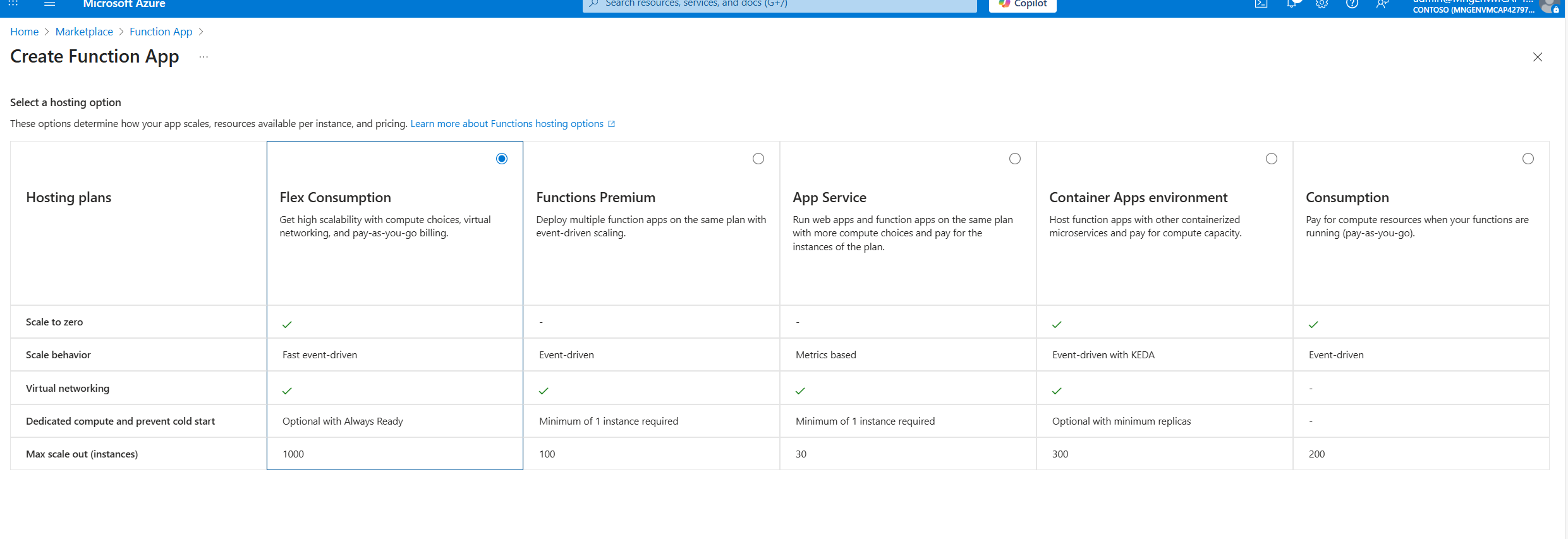
When deploying to a Function App on the Flex plan, deployments that rely on storage account key authentication are blocked. The deployment attempt fails with an error indicating key‑based authentication is not permitted. The Function App therefore cannot upload deployment blocks to the storage account and deployment aborts.

You will get the following dialog box upon deploying from Visual Studio. Also you can see various logs as shown below

Publish has encountered an error. Publish has encountered an error. We were unable to determine the cause of the error. Check the output log for more details.   A diagnostic log has been written to the following location: “C:\Users\pankajsurti\AppData\Local\Temp\tmp21DA.tmp”
Severity        Code        Description        Project        File        Line        Suppression State Error                OneDeploy attempt to publish file ‘C:\SRC\test-scott\FunctionApp-take-2\obj\Release\net9.0\linux-x64\PubTmp\FunctionApp-take-2-20251030110306149.zip’ through ‘https://test-scott-func-app.scm.azurewebsites.net/api/publish?RemoteBuild=false‘ failed with status code ‘Failed’. See the logs at ‘https://test-scott-func-app.scm.azurewebsites.net/api/deployments/2031fb90-ef08-442c-9c50-bb2b3c8ba581/log‘.        FunctionApp-take-2        C:\Program Files\dotnet\sdk\9.0.306\Sdks\Microsoft.NET.Sdk.Publish\targets\PublishTargets\Microsoft.NET.Sdk.Publish.OneDeploy.targets        58        
[{“log_time”:”2025-10-30T16:03:08.2164165Z”,”id”:”2031fb90-ef08-442c-9c50-bb2b3c8ba581″,”message”:”Starting deployment pipeline.”,”type”:0},{“log_time”:”2025-10-30T16:03:08.2341004Z”,”id”:”2031fb90-ef08-442c-9c50-bb2b3c8ba581″,”message”:”[Kudu-SourcePackageUriDownloadStep] Skipping download. Zip package is present at /tmp/zipdeploy/2031fb90-ef08-442c-9c50-bb2b3c8ba581.zip”,”type”:0},{“log_time”:”2025-10-30T16:03:08.2359905Z”,”id”:”2031fb90-ef08-442c-9c50-bb2b3c8ba581″,”message”:”[Kudu-ValidationStep] starting.”,”type”:0},{“log_time”:”2025-10-30T16:03:08.2552982Z”,”id”:”2031fb90-ef08-442c-9c50-bb2b3c8ba581″,”message”:”[StorageAccessibleCheck] Error while checking access to storage account using Kudu.Legion.Core.Storage.BlobContainerStorage: BlobUploadFailedException: Failed to upload blob to storage account: Response status code does not indicate success: 403 (This request is not authorized to perform this operation.).”,”type”:2},{“log_time”:”2025-10-30T16:03:08.259516Z”,”id”:”2031fb90-ef08-442c-9c50-bb2b3c8ba581″,”message”:”InaccessibleStorageException: Failed to access storage account for deployment: BlobUploadFailedException: Failed to upload blob to storage account: Response status code does not indicate success: 403 (This request is not authorized to perform this operation.).”,”type”:2}]
Key based authentication is not permitted on this storage account. RequestId:296de81a-401e-00a7-6026-494217000000 Time:2025-10-29T22:53:45.5896635Z Status: 403 (Key based authentication is not permitted on this storage account.) ErrorCode: KeyBasedAuthenticationNotPermitted   Content: <?xml version=”1.0″ encoding=”utf-8″?><Error><Code>KeyBasedAuthenticationNotPermitted</Code><Message>Key based authentication is not permitted on this storage account. RequestId:296de81a-401e-00a7-6026-494217000000 Time:2025-10-29T22:53:45.5896635Z</Message></Error>   Headers: Server: Microsoft-HTTPAPI/2.0 x-ms-request-id: 296de81a-401e-00a7-6026-494217000000 x-ms-error-code: KeyBasedAuthenticationNotPermitted Date: Wed, 29 Oct 2025 22:53:44 GMT Content-Length: 269 Content-Type: application/xml

Root cause

  • Flex plan Function Apps are not allowed to use storage account key authentication for uploads.
  • The Function App (or your deployment process) was configured to use the storage account connection string or key-based access.
  • The deployment must instead authenticate to the storage account using Azure Active Directory identities assigned to the Function App.

Solution overview

Switch the deployment to use a managed identity (system-assigned or user-assigned) and grant that identity the required role “Storage Blob Data Contributor” on the target storage account. Update the Function App deployment settings to use the managed identity for storage access instead of key/connection string authentication.

Step by step fix

  • Enable a managed identity on the Function App
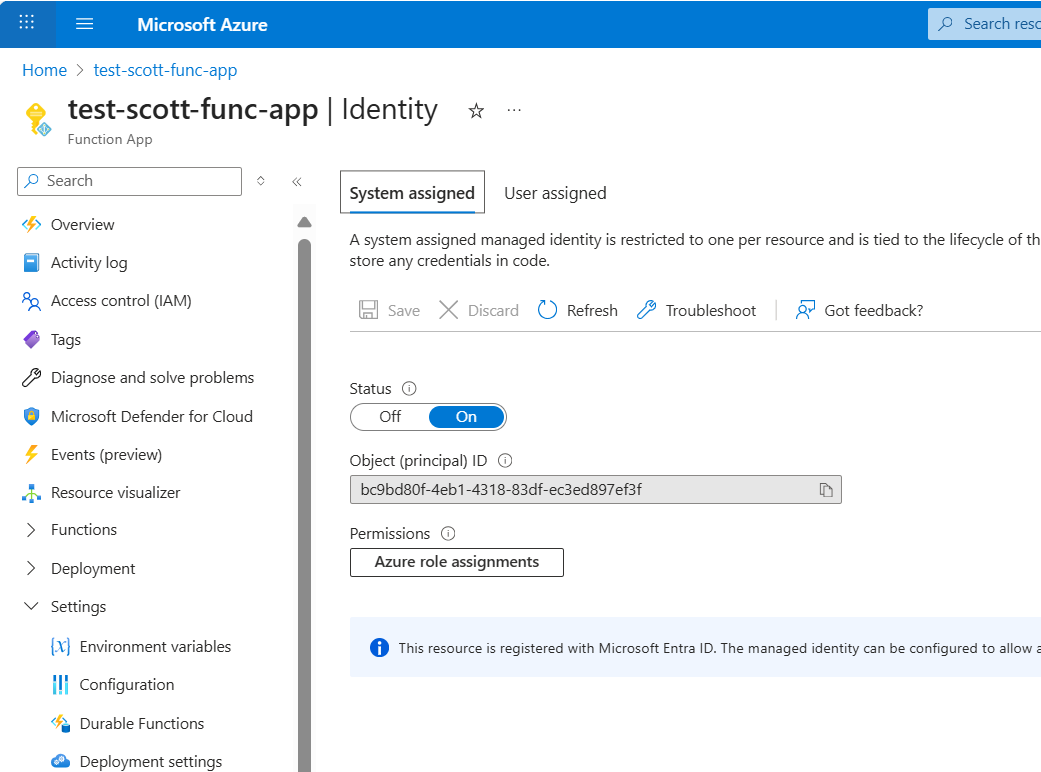
    • Open the Function App in the Azure portal and go to Identity.
    • Turn on System assigned identity (or create/use a User assigned identity if you prefer).
    • Copy the identity’s GUID (principal ID) for convenience.
  • Assign a role on the storage account
    • Open the target Storage Account and go to Access control (IAM).
    • Click Add role assignment.
    • Assign the role Storage Blob Data Contributor to the Function App identity by pasting/selecting the principal ID or selecting the Function App/user-assigned identity.
    • Do not assign broader roles than needed; Storage Blob Data Contributor is sufficient for upload operations.
  • Update Function App deployment settings
    • In the Function App, go to Deployment Center or Deployment settings.
    • Change the storage access method from connection string / key-based (default) to Use managed identity (select system-assigned or the user-assigned identity you enabled).
    • Save the deployment configuration.
  • Remove unnecessary permissions
    • Remove any unnecessary roles previously granted (for example, Account Contributor or Blob Data Owner), keeping permissions minimal and scoped to the storage account and the upload task.
  • Re-run deployment
    • Redeploy your Function App (via your CI/CD pipeline, PowerShell, or portal) and confirm that uploads succeed without the key-based authentication error.

Verification checklist

  • Managed identity enabled on the Function App and the correct principal ID visible.
  • Storage Blob Data Contributor role assigned to that identity on the storage account.
  • Deployment settings in the Function App configured to use the managed identity for storage access.
  • Successful deployment without the earlier key-based authentication error.

Best practices and notes

  • Use least privilege: the Blob Data Contributor role is typically sufficient for block uploads; avoid Owner or higher-level roles.
  • Prefer user-assigned identities if you want to reuse the same identity across multiple apps and scripts.
  • If you automate deployments (ARM, Bicep, Terraform, PowerShell), ensure the deployment template sets the Function App deployment settings to use the managed identity rather than connection strings.
  • Avoid adding your own account as a workaround for automation; ensure automation runs using the assigned managed identity for production safety and auditability.

Conclusion

The “Storage key based authentication is not permitted” error on Flex plan Function Apps is caused by attempting storage uploads with key/connection string authentication. The reliable fix is to enable a managed identity for the Function App, grant it the Storage Blob Data Contributor role on the storage account, and update the Function App deployment settings to use the managed identity. Follow the steps above and you should be able to deploy successfully without changing storage keys or weakening access control.

Posted in Technical Stuff | Tagged , , , , , , | Leave a comment

How to Authenticate and Query Azure Digital Twins using PowerShell?

Summary

Continuing from the last post, this entry explores how to achieve the desired outcome using PowerShell—step by step.

Step By Step Solution

Step # 1: Create a self-signed cert and export a PFX for Azure AD app authentication

Intro: This script creates a self-signed certificate in your CurrentUser certificate store, then exports it (including the private key) to a PFX file you can use for automated client authentication.

$certName = "CN=MyAzureADAppCert"
$certPath = "C:\SRC\MyAzureADAppCert.pfx" # CHANGE the PATH to your need
$certPassword = ConvertTo-SecureString -String "[Change to your need]" -Force -AsPlainText 

# Create self-signed certificate in the CurrentUser\My store
$cert = New-SelfSignedCertificate -Subject $certName `
  -CertStoreLocation "Cert:\CurrentUser\My" `
  -KeyExportPolicy Exportable `
  -KeySpec Signature `
  -KeyLength 2048 `
  -NotAfter (Get-Date).AddYears(2) `
  -HashAlgorithm "SHA256"

# Export the certificate with private key to a PFX file
Export-PfxCertificate -Cert $cert `
  -FilePath $certPath `
  -Password $certPassword

# Output thumbprint and path
Write-Host "Certificate Thumbprint: $($cert.Thumbprint)"
Write-Host "Certificate exported to: $certPath"

What the script does (line-by-line)

a. Variables

$certName = “CN=MyAzureADAppCert” — subject name for the certificate.
$certPath — path where the PFX (private key + cert) will be written.
$certPassword — secure string used to protect the exported PFX.

b. Create the certificate

CertStoreLocation — where cert is saved (CurrentUser\My).
KeyExportPolicy Exportable — allows exporting the private key (needed to create a PFX).
KeySpec Signature — key intended for signing (used to sign the JWT client_assertion).
KeyLength, NotAfter, HashAlgorithm — cryptographic choices (2048-bit RSA, two-year lifetime, SHA256).


c. Export the cert+private key to a PFX

This creates MyAzureADAppCert.pfx that contains the private key — keep it secret.
Output thumbprint and path

Write-Host prints the certificate thumbprint; you’ll use that thumbprint to reference the cert (e.g., as kid/x5t in JWT headers).

d. Why this is useful?

Apps that need non-interactive auth (service-to-service) should use certificate-based client credentials instead of long-lived client secrets. The PFX holds the private key used to sign a JWT that Azure AD will verify using the public certificate uploaded to the App Registration.
Security note

NOTE: (IMPORTANT)

  • Protect the PFX (private key). Do not commit to source control.
  • Upload only the public certificate (.cer) to Azure AD.

Step # 2: Use the PFX to obtain an access token (certificate-based client_credentials)

High-level steps:

  • Export the public cert (.cer) and upload it to the Azure AD App registration.
  • Use the PFX (private key) locally to build and sign a client_assertion JWT.
  • POST to Azure AD token endpoint with client_assertion to get an access token.
  • Call the resource API (e.g., Azure Digital Twins) with the returned access token.
# Get certificate
$cert = Get-Item "Cert:\CurrentUser\My\[REPLACE WITH THUMBPRINT YOUR VALUE]"
$now = [DateTimeOffset]::UtcNow.ToUnixTimeSeconds()
$exp = $now + 3600
$client_id = "REPLACE WITH YOUR VALUE"
$tenant_id = "REPLACE WITH YOUR VALUE"
# Replace these variables with your values
$adt_instance_url   = "[TODO REPLACE YOUR VALUE].azure.net" # e.g., myinstance.api.wus2.digitaltwins.azure.net
$api_version        = "2023-10-31" # Make sure you are using the latest version


# Compute SHA-1 thumbprint and base64url encode it for x5t
$sha1 = $cert.Thumbprint
# Convert hex thumbprint to byte array
$bytes = for ($i=0; $i -lt $sha1.Length; $i+=2) { [Convert]::ToByte($sha1.Substring($i,2),16) }
# Base64 encode, then base64url encode
$b64 = [Convert]::ToBase64String($bytes)
$x5t = $b64.Replace('+','-').Replace('/','_').Replace('=','')

# Build JWT header with x5t
$header = @{ alg = "RS256"; typ = "JWT"; x5t = $x5t } | ConvertTo-Json -Compress

# Build payload
$payload = @{
  aud = "https://login.microsoftonline.com/$tenant_id/oauth2/v2.0/token"
  iss = $client_id
  sub = $client_id
  jti = [guid]::NewGuid().ToString()
  nbf = $now
  exp = $exp
}

# Make sure you install the JWT module for New-Jwt  
# clone the git to SRC
# git clone https://github.com/SP3269/posh-jwt.git
# Import-Module C:\SRC\posh-jwt\JWT\JWT.psd1
# Create JWT with custom header
$jwt = New-Jwt -Cert $cert -Header $header -PayloadJson ($payload | ConvertTo-Json -Compress)
Write-Host "Signed JWT:" $jwt

# Prepare token request
$body = @{
    client_id             = $client_id
    scope                 = "https://digitaltwins.azure.net/.default"
    client_assertion_type = "urn:ietf:params:oauth:client-assertion-type:jwt-bearer"
    client_assertion      = $jwt
    grant_type            = "client_credentials"
}

$loginResponse = Invoke-RestMethod -Method Post -Uri "https://login.microsoftonline.com/$tenant_id/oauth2/v2.0/token" -Body $body


$access_token       = $loginResponse.access_token

# Prepare the query body
$body = @{
    query = "SELECT * FROM DIGITALTWINS"
} | ConvertTo-Json

# Prepare headers
$headers = @{
    "Authorization" = "Bearer $access_token"
    "Content-Type"  = "application/json"
}

# Invoke the REST API
$response = Invoke-RestMethod -Method Post `
    -Uri "https://$adt_instance_url/query?api-version=$api_version" `
    -Headers $headers `
    -Body $body

$response

Explanation of the above PowerShell code

  1. Export public certificate (no private key) Follow Certmgr.msc or Certificate Manager in Windows 11/10
  2. From the certificate store (thumbprint from script output) export the public cert:
  3. The .cer file contains the public key only — safe to upload.
  4. Portal path: Azure Portal -> Azure Active Directory -> App registrations -> Your app -> Certificates & secrets -> Upload certificate -> select the .cer.
  5. Do NOT upload the PFX to Azure AD (unless you’re using a managed identity or special scenario). PFX contains the private key — it must remain private and protected by you.
  6. What Azure stores: public key and certificate metadata; Azure uses this to validate signatures of JWTs signed by the corresponding private key.
  7. When you POST the signed JWT (client_assertion), Azure AD looks for a matching public cert uploaded under the app. It uses the JWT header x5t or kid to pick the right public key. If not found, you get invalid_client / invalid JWT errors.
  8. Generate and sign client_assertion JWT (PowerShell outline)
  9. JWT header must include either x5t (base64url-encoded SHA-1 thumbprint) or kid that matches the uploaded certificate identity. Azure AD requires one to map token to the uploaded public key.
  10. Minimal PowerShell (using the posh-jwt approach you have available — adapt thumbprint and paths):
  11. Call Azure AD token endpoint using the client_assertion
  12. If the token call succeeds, Azure AD validated the signed JWT using the public cert you uploaded and returned an access token.
  13. Use the token to call the resource API (ADT example)

Conclusion

  • The above code creates and exports a PFX with a private key for signing client_assertion JWTs.
  • Upload the public .cer to Azure AD App -> Certificates & secrets.
  • Use the PFX locally to sign a JWT (include x5t or kid in header) then POST it as client_assertion to the token endpoint.
  • Use returned access token to call the resource API.

Reference

https://learn.microsoft.com/en-us/rest/api/digital-twins/dataplane/operation-groups?view=rest-dataplane-2023-10-31

Posted in Technical Stuff | Tagged , , , , | Leave a comment

How to Authenticate and Query Azure Digital Twins Using REST Client?

Summary

Azure Digital Twins (ADT) is a powerful IoT platform for modeling and interacting with digital representations of real-world environments. Securely accessing ADT APIs requires Azure Active Directory (AAD) authentication, often using certificates for automation scenarios. This post explains how to authenticate and query ADT using both PowerShell and the VS Code REST Client.

Step 1. Overview of the Workflow

Obtain an Azure AD access token using either a client secret or a certificate-signed JWT.

Use the access token to call the Azure Digital Twins REST API.

Automate the process with PowerShell or test interactively with REST Client.


Step 2. Getting an Access Token

a. Using Client Secret (REST Client)

  • The .rest file demonstrates how to request a token from Azure AD using the client credentials flow:
POST https://login.microsoftonline.com/{{tenant_id}}/oauth2/v2.0/token
Content-Type: application/x-www-form-urlencoded

client_id={{client_id}}&
scope=https%3A%2F%2Fdigitaltwins.azure.net%2F.default&
client_secret={{client_secret}}&
grant_type=client_credentials

b. Querying Azure Digital Twins


Once you have the access token, you can query ADT:

POST https://{{adt_instance_url}}/query?api-version={{api_version}}
Authorization: Bearer {{access_token}}
Content-Type: application/json

{
  "query": "SELECT * FROM DIGITALTWINS"
}
  • Replace {{access_token}} with the token from the previous step.
  • The api-version should match the latest supported by your ADT instance (e.g., 2023-10-31).

Follow the next post: How to Authenticate and Query Azure Digital Twins using PowerShell? | Pankaj Surti’s Blog

Summary

  • Use the correct scope and api-version for ADT.
  • Prefer certificate-based authentication for automation.
  • Use REST Client for quick, interactive API testing.
  • Always check Azure documentation for the latest API versions and authentication requirements.

Useful references

VSCode – https://code.visualstudio.com

RESTClient – https://marketplace.visualstudio.com/items?itemName=humao.rest-client

Register an application in Microsoft Entra ID – https://learn.microsoft.com/en-us/entra/identity-platform/quickstart-register-app

Add and manage application credentials in Microsoft Entra ID – https://learn.microsoft.com/en-us/entra/identity-platform/how-to-add-credentials?tabs=certificate

Full SAMPLE.REST code for your reference.

# Azure Digital Twins REST API - Get JWT Auth Token and Make API Call

### Variables
@tenant_id        = --TODOChange---
@client_id        = --TODOChange---
@client_secret    = --TODOChange---
@adt_instance_url = --TODOChange---.digitaltwins.azure.net
@api_version      = 2023-10-31

### 1. Get Azure AD Token (JWT) for Azure Digital Twins
### Login Request
# @name login
POST https://login.microsoftonline.com/{{tenant_id}}/oauth2/v2.0/token
Content-Type: application/x-www-form-urlencoded

client_id={{client_id}}&
scope=https%3A%2F%2Fdigitaltwins.azure.net%2F.default&
client_secret={{client_secret}}&
grant_type=client_credentials

###
@access_token = {{login.response.body.access_token}}
### 2. Use JWT to Call Azure Digital Twins REST API
# Replace {access_token} with the token from the previous response.
### Login Request
# @name getDigitalTwins
POST https://{{adt_instance_url}}/query?api-version={{api_version}}
Authorization: Bearer {{access_token}}
Content-Type: application/json

{
  "query": "SELECT * FROM DIGITALTWINS"
}
###
Posted in Technical Stuff | Tagged , , , , | Leave a comment

How to find the SharePoint Site is shared with “Everyone except external users”?

Summary

The customer requires a solution focused on SharePoint permissions. Specifically, the script is designed to identify sites that have the “Everyone except external users” permission applied. It will operate exclusively at the site level, reading permissions and reporting any sites where this specific permission is detected.

Step by Step Solution

Step # 1 Register a new application with a certificate and configure the following permission.

Step # 2 Execute the following PowerShell script to retrieve the required information.

$JobScriptBlock = {
    param(
        [string]$SPOSiteUrl,
        [string][Parameter(Mandatory = $true)]$OutputReportsFolderParameter,
        [string]$AppID,
        [string]$TenantID,
        [string]$CertThumbPrint
    )
    Import-Module Microsoft.Graph.Authentication

    # Extract host and site path from the SharePoint Web URL
    $uri            = [Uri]$SPOSiteUrl
    $urihost        = $uri.Host

    $cert = Get-ChildItem -Path "Cert:\CurrentUser\My" | Where-Object { $_.Thumbprint -eq $CertThumbPrint  }     
    $accessToken = (Get-MsalToken -ClientId $AppID -TenantId $TenantID -ClientCertificate $cert -Scopes "https://$urihost/.default").AccessToken

    $restUrl = "$SPOSiteUrl/_api/web/sitegroups"
    $response = Invoke-RestMethod -Uri $restUrl -Method Get -Headers @{
        "Accept" = "application/json;odata=verbose"
        "Authorization" = "Bearer $accessToken"
    }
    $response.d.results | ForEach-Object {
        Write-Host "SPO Group: $($_.Title) ($($_.Id))"
        $spoGroupName = $_.Title
        $restUrl = "$SPOSiteUrl/_api/web/sitegroups($($_.Id))/users" 
        $response = Invoke-RestMethod -Uri $restUrl -Method Get -Headers @{
            "Accept" = "application/json;odata=verbose"
            "Authorization" = "Bearer $accessToken"
        }
        # Output the users
        $response.d.results | ForEach-Object {
            #Write-Host "User: $($_.Title) ($($_.LoginName))"
            if ($_.LoginName -like "*spo-grid-all-users*") {
                if (-not $results) { $results = @() }
                $results += [PSCustomObject]@{
                    SiteUrl       = $SPOSiteUrl
                    GroupName     = $spoGroupName
                    UserTitle     = $_.Title
                }
                Write-Host "Found user with LoginName containing $($_.Title) in '$spoGroupName'"
            }
        }
    }
    # Output results to CSV
    if ($results.Count -gt 0) {
        $outputPath = Join-Path -Path $OutputReportsFolderParameter -ChildPath "SitesWithEveryoneExceptExternalUsers.csv"
        $results | Export-Csv -Path $outputPath -NoTypeInformation -Force -Append
    } else {
        Write-Host "No sites found with 'Everyone except external users' permissions."
    }


}

$jobParams = @{
    SPOSiteUrl                      = "https://surtipankaj.sharepoint.com/sites/test1200" # "https://surtipankaj.sharepoint.com/sites/test1"
    OutputReportsFolderParameter    = "C:\0-SRC\REPORTS\Output"
    AppID                           = "868d8147-66c9-4659-a935-27b03b3be1c0" #SPO-Report-Permissions
    TenantID                        = "1264183d-a35d-43db-a0c7-2f5f1247c7e5"
    CertThumbPrint                  = "409e6a95f1f4c9323eddca4807f9c8855f669cf9"
}
& $JobScriptBlock @jobParams

Conclusion

This script utilizes the SharePoint REST API to retrieve the necessary information efficiently. It helps eliminate confusion regarding how to access SharePoint groups, their users, and specific details as required by the customer

Posted in Technical Stuff | Tagged , , , | Leave a comment

How to build Custom engagement hub channel for Copilot Studio?

Summary

This blog post explores the process of transferring interactions to a live agent of a custom engagement hub, replicating the seamless transition experience as offered in Microsoft Dynamics 365 Customer Service (see video here). I will provide a detailed guide, including code implementations, on how to achieve this using a custom engagement canvas and engagement hub architecture. The custom engagement hub for my customer scenario was Amazon Connect.

We will be covering the architecture diagram mentioned here. Also please visit here and got to Slide deck 62.

Step by Step Solution on Copilot Studio

  1. Acquire a Copilot Studio License
    • You can use a free license for this setup.
  2. Create a Simple Copilot
    • Focus solely on general knowledge-based responses.
    • No activities or actions—only addressing the out of the box transfer-to-live-agent scenario.
  3. Publish the Copilot
    • Ensure your Copilot is published.
  4. Click on Direct Line Speech
    • Go to Channels and select Direct Line Speech.
    • Copy the Token Endpoint—this is required for communication setup. Copy and save in the Notepad.

Step By Step on the Custom Canvas side

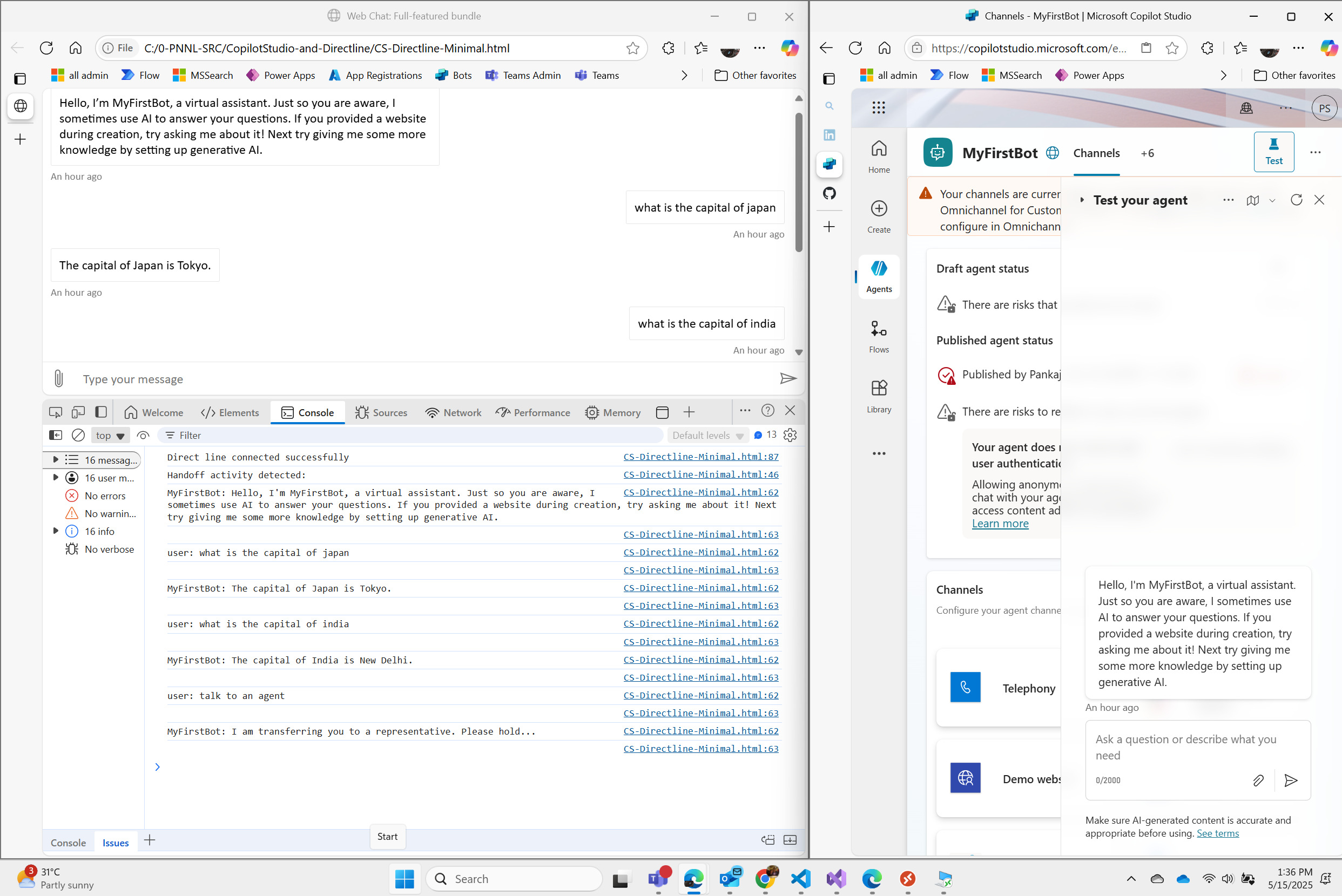
  1. Modify the Index.html File
    • Locate the provided index.html file below.
    • Change line #28 by replacing the placeholder with your token value from above Step # 4.
  2. Save and Launch the File
    • Save the modified file on your local drive.
    • Open index.html in your preferred web browser.
  3. Interact with the Bot
    • Upon launching, the bot will greet you and ask a few questions.
    • Proceed through the bot interaction as prompted.
  4. Enable Developer Tools
    • Open Developer Tools in your browser (usually F12 or Ctrl+Shift+I).
    • Keep the Console Log active to capture the conversation context.
  5. Trigger Live Agent Transfer
    • Say “Talk to an agent” in the chat interface.
    • The Console Log will display the conversation along with the event handling process.
  6. Capture the Handoff Event
    • The bot will initiate a handoff event, which the provided code captures.
    • This process is driven by Web Chat using JavaScript, Redux Store, and activity dispatch payloads.
  7. Understand the Backend Process
    • The Redux store coordinates the handshake between Copilot and the canvas.
    • This enables seamless handoff to an engagement hub.
  8. Integrate with Amazon Connect
    • The final step is to transfer control to Amazon Connect.
    • Amazon Connect handles live agent conversations and calls.
<!DOCTYPE html>
<html lang="en-US">
  <head>
    <title>Web Chat: Full-featured bundle</title>
    <meta name="viewport" content="width=device-width, initial-scale=1.0" />
    <script crossorigin="anonymous" src="https://cdn.botframework.com/botframework-webchat/latest/webchat.js"></script>
    <style>
      html,
      body {
        height: 100%;
      }

      body {
        margin: 0;
      }

      #webchat {
        height: 100%;
        width: 100%;
      }
    </style>
  </head>
  <body>
    <div id="webchat" role="main"></div>
    <script>
(async function() {
    //TODO: Modify the URL with your directline token endpoint.
    const res = await fetch('https://87beed3c23d7ed089b59e945e27f39.06.environment.api.powerplatform.com/powervirtualagents/botsbyschema/crc1b_MyFirstBot/directline/token?api-version=2022-03-01-preview', { method: 'GET' });

    const { token } = await res.json();

    const store = window.WebChat.createStore({}, ({ dispatch }) => next => action => {
        //console.log('Action received:', action);

        // Listen for incoming activities to detect the handoff activity and custom event activities
        if (action.type === 'DIRECT_LINE/INCOMING_ACTIVITY') {
            const { activity } = action.payload;

            //console.log('***** Incoming activity:', activity.name);

            // Detect the 'handoff' activity
            //if (activity.type === 'handoff') {
            if (activity.name === 'handoff.initiate') {
                //alert('Handoff activity detected!');
                //debugger;
                console.log('Handoff activity detected: \n');

                if (
                  activity.attachments &&
                  Array.isArray(activity.attachments)
                ) {
                  const transcriptAttachment = activity.attachments.find(
                    att => att.name === 'Transcript' && att.content && Array.isArray(att.content)
                  );
                  if (transcriptAttachment) {
                    const messages = transcriptAttachment.content.filter(
                      item => item.type === 'message'
                    );
                    
                    //console.log('Transcript messages:', messages);
                    messages.forEach(msg => {
                      console.log(`${msg.from && msg.from.name ? msg.from.name : 'user'}: ${msg.text || ''}\n`);
                      console.log('\n')

                    });
                  }
                }
                // TODO: you need to transder this conversation with the history the Engagement Hub e.g. Amazon Connect

                return;
            }
        }

        // Listen for the direct line connection to be fulfilled
        if (action.type === 'DIRECT_LINE/CONNECT_FULFILLED') {
            console.log('Direct line connected successfully');
            dispatch({
                type: 'DIRECT_LINE/POST_ACTIVITY',
                meta: { method: 'keyboard' },
                payload: {
                    activity: {
                        type: 'event',
                        name: "startConversation",
                        from: { id: 'user' }
                    }
                }
            });
        }

        return next(action);
    });

    window.WebChat.renderWebChat(
      {
        directLine: window.WebChat.createDirectLine({ token }),
        store
      },
      document.getElementById('webchat')
    );

    document.querySelector('#webchat > *').focus();
})().catch(err => console.error(err));
    </script>
  </body>
</html>

Here is how I got the responses:

Conclusion

This demonstrates how a custom canvas enables users to interact with a live agent while keeping Copilot running in the background. Additionally, you can expand the functionality by adding code to transfer conversation history seamlessly to the engagement hub.

Some useful links:

https://learn.microsoft.com/en-us/azure/bot-service/bot-builder-webchat-overview?view=azure-bot-service-4.0

https://learn.microsoft.com/en-us/azure/bot-service/rest-api/bot-framework-rest-direct-line-3-0-send-activity?view=azure-bot-service-4.0

https://github.com/Microsoft/botframework-sdk/blob/main/specs/botframework-activity/botframework-activity.md

https://github.com/microsoft/agents

Posted in Technical Stuff | Leave a comment

How to clean up the FHIR objects using bundle in PowerShell?

Summary

This post is continuation of the previous post.

How to clean up the FHIR objects in the Postman received as a bundle?

PowerShell Code

# Load the System.Web assembly
Add-Type -AssemblyName System.Web

# Define the OAuth 2.0 endpoint and client credentials
$clientId = "<YOUR-CLIENT-ID>"
$clientSecret = "<YOUR-CLIENT-SECRET"
$tenantId="<YOUR-TENANT-ID>"
$fhirurl = "https://<YOUR-FHIR-SERVICE>.fhir.azurehealthcareapis.com/"

$tokenUrl = "https://login.microsoftonline.com/$tenantId/oauth2/token"


# Create the body for the token request
$body = @{
    grant_type = "client_credentials"
    client_id = $clientId
    client_secret = $clientSecret
    resource = $fhirurl
}

# Convert the body to a URL-encoded string
$bodyEncoded = [System.Web.HttpUtility]::ParseQueryString([System.String]::Empty)
$body.GetEnumerator() | ForEach-Object { $bodyEncoded.Add($_.Key, $_.Value) }
$bodyString = $bodyEncoded.ToString()

# Make the token request
$response = Invoke-RestMethod -Method Post -Uri $tokenUrl -ContentType "application/x-www-form-urlencoded" -Body $bodyString

# Extract the access token from the response
$accessToken = $response.access_token

# Use the access token to make an API call
$apiUrl = "$fhirurl/Condition?_elements=fullurl&_count=500"
$headers = @{
    Authorization = "Bearer $accessToken"
}

# Make the API request
$apiResponse = Invoke-RestMethod -Method Get -Uri $apiUrl -Headers $headers

# Output the API response
$apiResponse

# Check if the count of entries is greater than zero
if ($apiResponse.entry.Count -gt 0) {
    # Create the entries array dynamically
    $entries = @()
    foreach ($anEntry in $apiResponse.entry) {
        $entry = @{
            request = @{
                method = "DELETE"
                url = $anEntry.fullUrl
            }
        }
        $entries += $entry
    }

    # Define the JSON structure
    $jsonData = @{
        resourceType = "Bundle"
        type = "transaction"
        entry = $entries
    }

    # Convert the PowerShell object to JSON
    $jsonString = $jsonData | ConvertTo-Json -Depth 3

    # Output the JSON string
    #$jsonString


    # Send the POST request with the JSON string as the body
    try {


        $postResponse = Invoke-RestMethod -Method Post -Uri $fhirurl -Headers $headers -Body $jsonString -ContentType "application/json"

        # Output the response from the POST request
        #$postResponse
    } 
    catch 
    {
        Write-Error "Failed to send POST request: $_"
    } 
}
else {
    <# Action when all if and elseif conditions are false #>
    Write-Output "There are no items left."
}

Conclusion

This is other ways you can clean up the FHIR objects.

Posted in FHIR | Tagged , , , , | Leave a comment

How to get SAML payload decoded using PowerShell and browser developer tools?

Summary

This article is to show how to decode the Single Sign-on SAML payload in Microsoft Entra.

Solution

Follow the following links to create an Enterprise Applications in Entra.

ClaimsXRay in AzureAD with Directory Extension

Look for the SAML Payload in the Browser Developer Tools. It will be of type Document. Click on the document type. In this example we are using ClaimsXRAY but for your case it will be different app. The network tab will have something different url for the document type.

You may get the one line network trace as following. On the SAML payload response you can right click and Copy the value. The value will be in the Clipboard.

PowerShell Scripts

The next step is to open the PowerShell Script and type the following.


$saml = Get-ClipBoard

$decoded = [System.Text.Encoding]::UTF8.GetString([System.Convert]::FromBase64String("$saml"))

$decoded | out-file -filepath saml-decoded.xml

Step 1: Get the SAML response value from the clipboard. Store in variable $saml.

Step 2: Using the $saml variable ger the Base64String decoded value. store in $decoded value.

Step #: Store the the $decoded value to a file. Note: you need to change the file name.

Conclusion

This is very easy way to check the SAML decoded values for the Single Sign on Application debugging. I hope this is helpful. Write on comments your feedback.

Posted in Azure, EntraID, powershell | Leave a comment

How to add domain/samaccountname claim attribute in Entra Application?

Summary

The customer’s app required an UPN claim in the format of domain/samaccountname. Usually the UserPrincipal attribute is an email address. The customer has the hybrid identity and Active Directory is synched. The following technique can give you the domain/samaccountname claim.

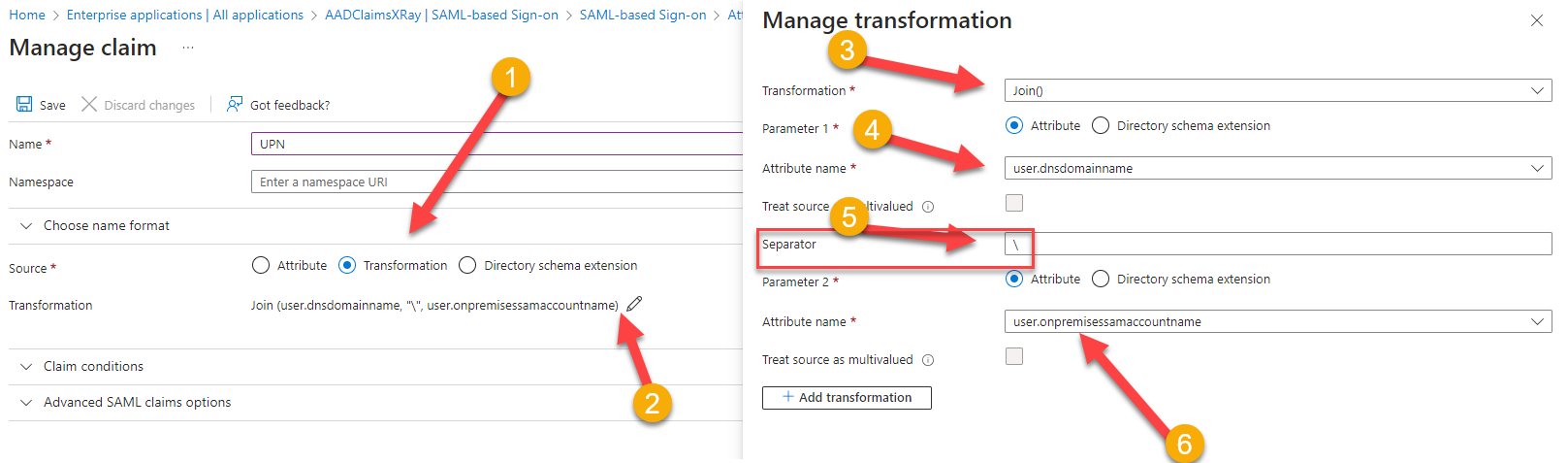
Steps to add UPN attribute.

After adding a new attribute claim.

  1. Select the “Transformation”
  2. Click on the Edit icon.
  3. Select the Transformation method as “Join()”
  4. Select “user.dnsdomainname” attribute for the Parameter 1.
  5. In the Separator add the backslash “\”.
  6. Select “user.onprmeisessamaccountname” attribute for Parameter 2.

Conclusion

When you test this application in the ClaimsXray you will see the UPN as “Contoso\SurtiPankaj” i.e. “DomainName\UserName”.

ClaimsXRAY Tool Info.

https://techcommunity.microsoft.com/t5/core-infrastructure-and-security/claimsxray-in-azuread-with-directory-extension/ba-p/1505737

Posted in Azure, EntraID | Leave a comment

What are the benefits to explain “Assignment required?” and “Visible to users?” flags to the customer?

Summary

To transition ADFS application to Entra ID you are creating the Enterprise application. You will notice two flags, “Assignment required?” and “Visible to users?”.

If you hover over the text it clearly states that if this flag is set to no means everyone will be able to see the app in the myapps.microsoft.com portal. This can be more educated to the customer to not to set as No because now the app is presence is available to everyone in the tenant.

The next flag is “Visible to users?”

This flag is important flag for the application modernization. I recommend to set to Yes, this will help end users to find the apps from myapps.microsoft.com flag. However, doing that you want to educate the customer not to set the previous flag “Assignment required?” to us, unless customer wants the app to be seen by everyone in the tenant.

What should you guide to the customer?

I recommend tell them the Entra ID application is like a fence now for their house (in this case application). The fence now can be controlled by them.

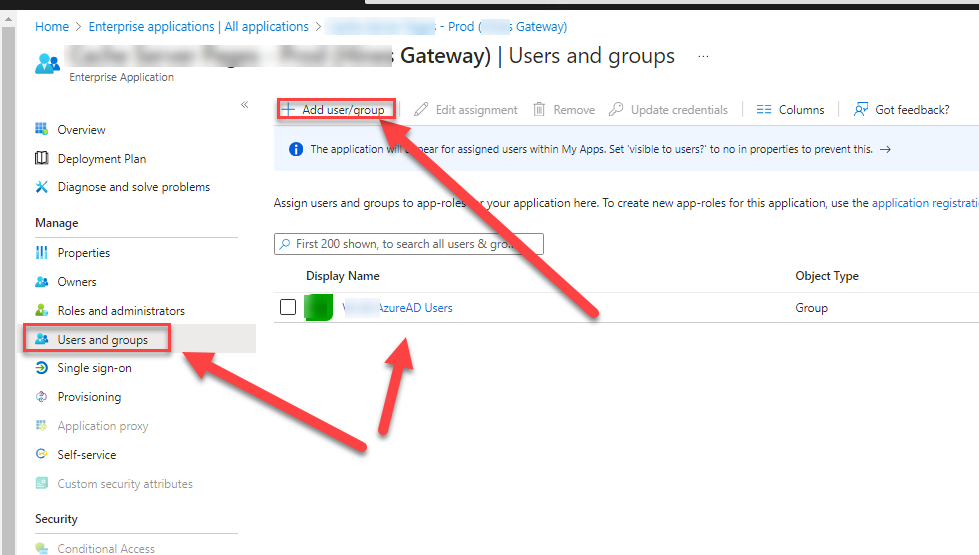
To control this application the customer can now add “User and groups”. Only those users or member of groups will be able to see the apps in myapps.microsoft.com portal.

What are the advantages?

Well, clearly you can educate customer that give visibility to those users you know they should see and access the apps. If they provide access to entire tenant that will make the apps visible to everyone in the tenant and most of time the end users will click to access the app. They most likely will fail or success to get in to the app but by doing the above simple step those issues can be addressed.

Conclusion

These flags are sometimes missed and I want to share for your awareness and reference.

https://learn.microsoft.com/en-us/entra/identity/enterprise-apps/access-panel-collections

https://learn.microsoft.com/en-us/entra/identity/enterprise-apps/custom-security-attributes-apps?pivots=portal

Posted in Azure, EntraID | Leave a comment

How to map ADFS roles claim rule to Entra ID application? 

Summary 

The following is a ADFS claim for the FooBar client’s application.   

@RuleTemplate = “LdapClaims” @RuleName = “AD Attributes” 

c:[Type == “http://schemas.microsoft.com/ws/2008/06/identity/claims/windowsaccountname&#8221;, Issuer == “AD AUTHORITY”] =>  

issue( store = “Active Directory”,  

types = (  “http://schemas.xmlsoap.org/ws/2005/05/identity/claims/nameidentifier&#8221;,  

“user.firstName”,  “user.lastName”), query = “;sAMAccountName,givenName,sn;{0}”, param = c.Value); 

@RuleTemplate = “EmitGroupClaims” @RuleName = “Contoso-CoolGroup-Admin” 

c:[Type == “http://schemas.microsoft.com/ws/2008/06/identity/claims/groupsid&#8221;, Value == “S-8-8-88-8888888888-888888808-80888888-888888”, Issuer == “AD AUTHORITY”] =>  

issue(Type = “http://schemas.microsoft.com/ws/2008/06/identity/claims/role&#8221;, Value = “Contoso-CoolGroup-Admin”, Issuer = c.Issuer, OriginalIssuer = c.OriginalIssuer, ValueType = c.ValueType); 

@RuleTemplate = “EmitGroupClaims” @RuleName = “Contoso-CoolGroup-SSO” 

c:[Type == “http://schemas.microsoft.com/ws/2008/06/identity/claims/groupsid&#8221;, Value == “S-9-9-99-9999999999-999999909-90999999-999999”, Issuer == “AD AUTHORITY”] =>  

issue(Type = “http://schemas.somevendor.com/ws/2021/10/identity/AccessGroup&#8221;, Value = “Contoso-CoolGroup-SSO”, Issuer = c.Issuer, OriginalIssuer = c.OriginalIssuer, ValueType = c.ValueType); 

Explanation of the above rule: 

  1. AD Attributes Rule:
    • Template: LdapClaims 
      • Name: AD Attributes 
      • Condition: If the incoming claim type is a Windows account name issued by AD AUTHORITY. 
      • Action: Issue new claims for the user’s name identifier, first name, and last name by querying the Active Directory with the user’s sAMAccountName, givenName, and sn attributes. 
  2. Contoso-CoolGroup-Admin Group Claim Rule:
    • Template: EmitGroupClaims 
    • Name: CSOC-SG-CineNet-Admin 
    • Condition: If the incoming claim type is a group SID with a specific value, indicating membership in the  Contoso-CoolGroup-Admin group, issued by AD AUTHORITY. 
    • Action: Issue a role claim with the value Contoso-CoolGroup-Admin, carrying over the issuer and original issuer from the incoming claim. 
  3. Contoso-CoolGroup-SSO Group Claim Rule:
    • Template: EmitGroupClaims 
    • Name: Contoso-CoolGroup-SSO 
    • Condition: If the incoming claim type is a group SID with a different specific value, indicating membership in the Contoso-CoolGroup-SSO group, issued by AD AUTHORITY. 
    • Action: Issue an access group claim with the value Contoso-CoolGroup-SSO, carrying over the issuer and original issuer from the incoming claim. 

SAML will have following Claim(Value) pairs in the payload. The same should be generated for Entra ID SSO claim. 

Claim Value 
http://schemas.xmlsoap.org/ws/2005/05/identity/claims/nameidentifier&nbsp;UserPrincipalName 
user.firstName givenName 
user.lastName sn 
http://schemas.microsoft.com/ws/2008/06/identity/claims/role  Contoso-CoolGroup-Admin 
http://schemas.somevendor.com/ws/2021/10/identity/AccessGroupContoso-CoolGroup-SSO 
Claim(Value) pair

Step By Step Claims in Entra ID. 

#1 Create an enterprise application in the Entra ID 

#2 Create Single Sign-on Claims rules. 

#3 Using the Application ID go to the App registration of the Enterprise Application. 

#4 Create the Roles as specified in the claims rules. E.g. CSOC-SG-CineNet-Admin and CSOC-SG-CineNet-SSO 

#5 go to the enterprise application to add the above two groups and assign the roles respectively. 

# 6 go to Single Sign-On to add the two claims with “user.assignedroles” attribute 

Conclusion

The above method is for setting the roles claims for the Entra ID similar to ADFS.  

ADFS claims rules (Very good article) 

Tips and tricks with ADFS claims rules 

Posted in EntraID | Tagged , , , , | Leave a comment