
Summary
This blog post explores the process of transferring interactions to a live agent of a custom engagement hub, replicating the seamless transition experience as offered in Microsoft Dynamics 365 Customer Service (see video here). I will provide a detailed guide, including code implementations, on how to achieve this using a custom engagement canvas and engagement hub architecture. The custom engagement hub for my customer scenario was Amazon Connect.
We will be covering the architecture diagram mentioned here. Also please visit here and got to Slide deck 62.
Step by Step Solution on Copilot Studio
- Acquire a Copilot Studio License
- You can use a free license for this setup.
- Create a Simple Copilot
- Focus solely on general knowledge-based responses.
- No activities or actions—only addressing the out of the box transfer-to-live-agent scenario.
- Publish the Copilot
- Ensure your Copilot is published.
- Click on Direct Line Speech
- Go to Channels and select Direct Line Speech.
- Copy the Token Endpoint—this is required for communication setup. Copy and save in the Notepad.

Step By Step on the Custom Canvas side
- Modify the Index.html File
- Locate the provided index.html file below.
- Change line #28 by replacing the placeholder with your token value from above Step # 4.
- Save and Launch the File
- Save the modified file on your local drive.
- Open index.html in your preferred web browser.
- Interact with the Bot
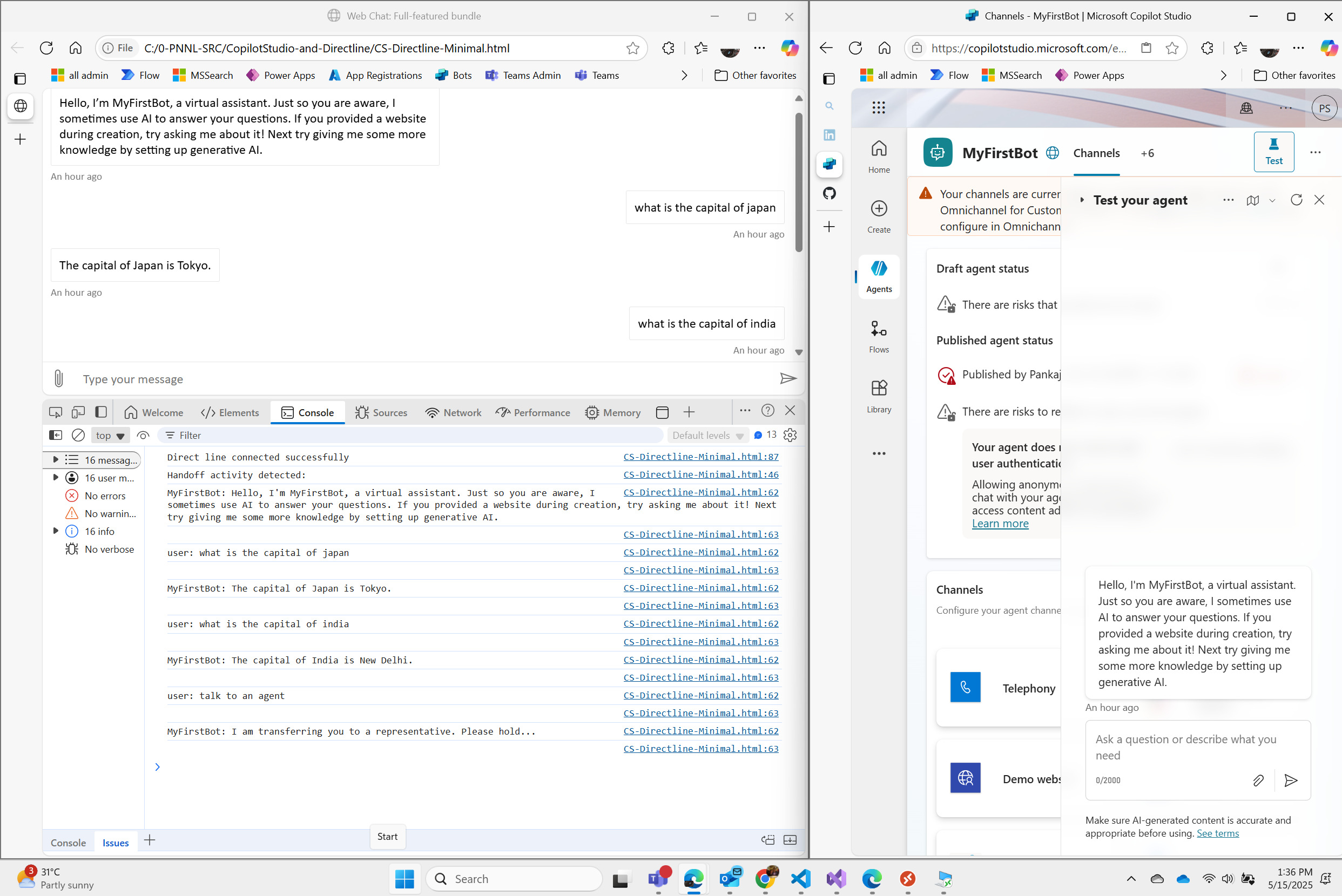
- Upon launching, the bot will greet you and ask a few questions.
- Proceed through the bot interaction as prompted.
- Enable Developer Tools
- Open Developer Tools in your browser (usually F12 or Ctrl+Shift+I).
- Keep the Console Log active to capture the conversation context.
- Trigger Live Agent Transfer
- Say “Talk to an agent” in the chat interface.
- The Console Log will display the conversation along with the event handling process.
- Capture the Handoff Event
- The bot will initiate a handoff event, which the provided code captures.
- This process is driven by Web Chat using JavaScript, Redux Store, and activity dispatch payloads.
- Understand the Backend Process
- The Redux store coordinates the handshake between Copilot and the canvas.
- This enables seamless handoff to an engagement hub.
- Integrate with Amazon Connect
- The final step is to transfer control to Amazon Connect.
- Amazon Connect handles live agent conversations and calls.
<!DOCTYPE html>
<html lang="en-US">
  <head>
    <title>Web Chat: Full-featured bundle</title>
    <meta name="viewport" content="width=device-width, initial-scale=1.0" />
    <script crossorigin="anonymous" src="https://cdn.botframework.com/botframework-webchat/latest/webchat.js"></script>
    <style>
      html,
      body {
        height: 100%;
      }

      body {
        margin: 0;
      }

      #webchat {
        height: 100%;
        width: 100%;
      }
    </style>
  </head>
  <body>
    <div id="webchat" role="main"></div>
    <script>
(async function() {
    //TODO: Modify the URL with your directline token endpoint.
    const res = await fetch('https://87beed3c23d7ed089b59e945e27f39.06.environment.api.powerplatform.com/powervirtualagents/botsbyschema/crc1b_MyFirstBot/directline/token?api-version=2022-03-01-preview', { method: 'GET' });

    const { token } = await res.json();

    const store = window.WebChat.createStore({}, ({ dispatch }) => next => action => {
        //console.log('Action received:', action);

        // Listen for incoming activities to detect the handoff activity and custom event activities
        if (action.type === 'DIRECT_LINE/INCOMING_ACTIVITY') {
            const { activity } = action.payload;

            //console.log('***** Incoming activity:', activity.name);

            // Detect the 'handoff' activity
            //if (activity.type === 'handoff') {
            if (activity.name === 'handoff.initiate') {
                //alert('Handoff activity detected!');
                //debugger;
                console.log('Handoff activity detected: \n');

                if (
                  activity.attachments &&
                  Array.isArray(activity.attachments)
                ) {
                  const transcriptAttachment = activity.attachments.find(
                    att => att.name === 'Transcript' && att.content && Array.isArray(att.content)
                  );
                  if (transcriptAttachment) {
                    const messages = transcriptAttachment.content.filter(
                      item => item.type === 'message'
                    );

                    //console.log('Transcript messages:', messages);
                    messages.forEach(msg => {
                      console.log(`${msg.from && msg.from.name ? msg.from.name : 'user'}: ${msg.text || ''}\n`);
                      console.log('\n')

                    });
                  }
                }
                // TODO: you need to transder this conversation with the history the Engagement Hub e.g. Amazon Connect

                return;
            }
        }

        // Listen for the direct line connection to be fulfilled
        if (action.type === 'DIRECT_LINE/CONNECT_FULFILLED') {
            console.log('Direct line connected successfully');
            dispatch({
                type: 'DIRECT_LINE/POST_ACTIVITY',
                meta: { method: 'keyboard' },
                payload: {
                    activity: {
                        type: 'event',
                        name: "startConversation",
                        from: { id: 'user' }
                    }
                }
            });
        }

        return next(action);
    });

    window.WebChat.renderWebChat(
      {
        directLine: window.WebChat.createDirectLine({ token }),
        store
      },
      document.getElementById('webchat')
    );

    document.querySelector('#webchat > *').focus();
})().catch(err => console.error(err));
    </script>
  </body>
</html>
Here is how I got the responses:
Conclusion
This demonstrates how a custom canvas enables users to interact with a live agent while keeping Copilot running in the background. Additionally, you can expand the functionality by adding code to transfer conversation history seamlessly to the engagement hub.
Some useful links:


 Pankaj Surti's Blog